

Adobe Premiere Pro is a video editing app packed with features. But when you work in Premiere Pro, you’re not confined just to those options. Thanks to Premiere plugins, you can add new tools and features to your existing Premiere install.
In this tutorial, you’ll learn how to add plugins to Adobe Premiere Pro. Then, we’ll look at five of the best plugins and extensions available today. These vary in theme and function, but all deliver powerful new features to Premiere Pro.
In Premiere Pro, how to install plugins is the first topic we’ll tackle. Let’s get to work!
Premiere Pro: How to Install Plugins Quickly (Step by Step)
Think of plugins and extensions as ways to expand the use you get from Premiere Pro. Some of the best Premiere Pro plugins let you make edits and changes that the app doesn’t support by default. Or, these plugins automate workflows to simplify complex edits.
Learning how to add plugins to Adobe Premiere Pro is easy. We’ll look at how to do it by demoing a free plugin from the Adobe Creative Cloud Marketplace. It’s called Auphonic, and it links to an online service that edits audio. I’ve used Auphonic for years in my own editing work.


With it, you can take audio that you’re working with in Premiere and upload it to Auphonic. There, it will be enhanced and available for download back into Premiere. You can check out the Auphonic plugin here.
Now, let’s look at how to import plugin tools like this in Premiere Pro. It only takes a few seconds.
Note: depending on where you source your plugins, the workflow may be a bit different. If in doubt, be sure to refer to the documentation or instructions included in your plugin of choice. Some third-party plugins include installers that work automatically, for example.
1. Choose a Plugin
The best place to source Premiere plugins is Adobe’s own library of them. Keep in mind: Premiere Pro is one app in the broader Creative Cloud ecosystem. As part of Creative Cloud, you have access to the Adobe Exchange Marketplace.
Among an array of digital content, it features countless Premiere Pro plugins. This is a controlled landscape. That means that you don’t have to worry about downloading content from strange places online. And it links directly to your Premiere Pro install, making the process a breeze.
To explore Premiere Pro extensions on Adobe Exchange, open the Creative Cloud app on your computer. On the home screen, you’ll see links to Premiere Pro and any other Creative Cloud apps that you subscribe to. And on the left, you’ll see a toolbar with several buttons.


One of these buttons is labeled Stock & Marketplace. Click Stock & Marketplace to launch the library of plugins and extensions.
Once the Marketplace launches, you have several ways to find plugins. If you know a specific name, you can keyboard it into the search box in the middle. Or, you can choose the Plugins tab at the top of the screen. You can then filter by Premiere Pro to ensure only Premiere extensions are visible.


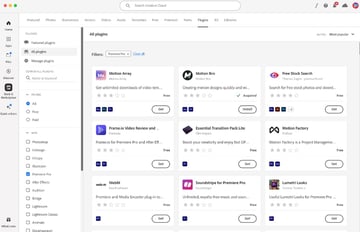
Let’s find the Auphonic plugin, and we’re ready to learn how to add plugins to Adobe Premiere Pro.
2. Follow the Installation Steps
With the plugin located, check out the product page. On the left, you’ll see screenshots of the interface. Below are listed the key features. To install a plugin from the Marketplace, look at the top right of the screen.
First, you’ll see the price, which here is free. Many plugins are available for free or for purchase. Many others include a free trial to help you decide whether to buy them.


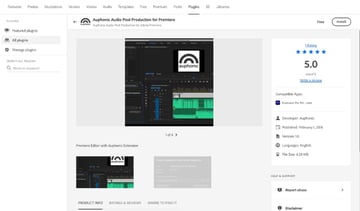
To install your plugin, click Install in the upper right corner. You’ll be asked for permission to install it, and to review the terms of service. Review these, then click OK. You’ll see a message reading Installing Plugin appear.
When it’s complete, this changes to the word Installed. You’re all set. As you can see in Premiere Pro, how to install plugins is an easy skill to master.
3. Find the Plugin in Premiere Pro
With your Premiere plugins installed, go ahead and launch Adobe Premiere Pro itself. Navigate to a project that you’re working on, and open it up. Now, it’s time to launch the extension and get started using it.

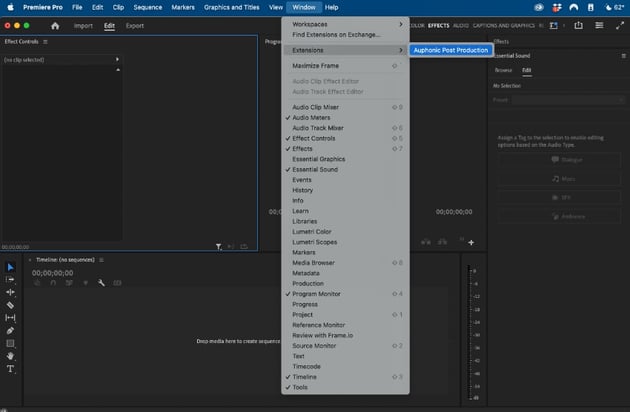

To do that, find the Window button. It’s on the menu bar at the very top of your screen. Click Window, and from the list of options, hover over Extensions.
Inside, you’ll see the Auphonic plugin (and others that you may have installed). To open one, simply click on its name. You can start using your extensions in moments, for all of your projects.
4. Optional: Manage Plugins after Installation
Just like other software, Premiere Pro extensions will sometimes have updates. And you might find yourself wanting to uninstall extra plugins that you’ve used in the past.
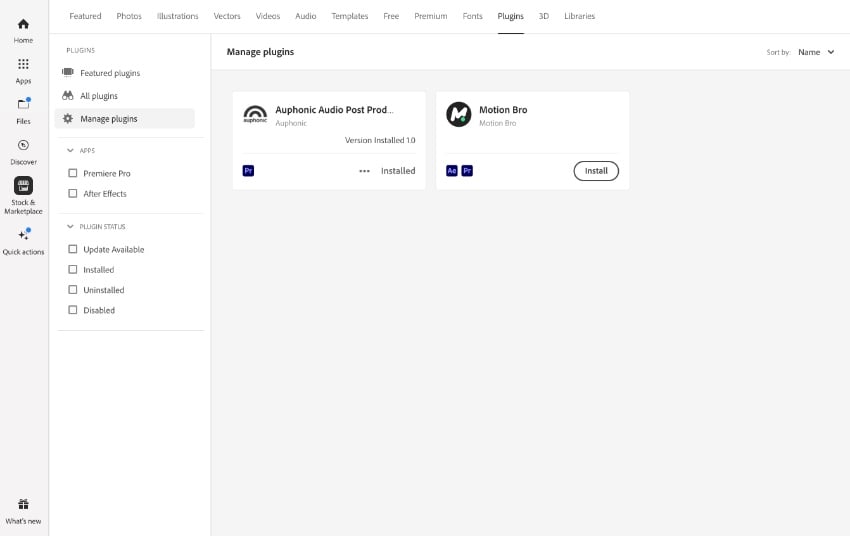
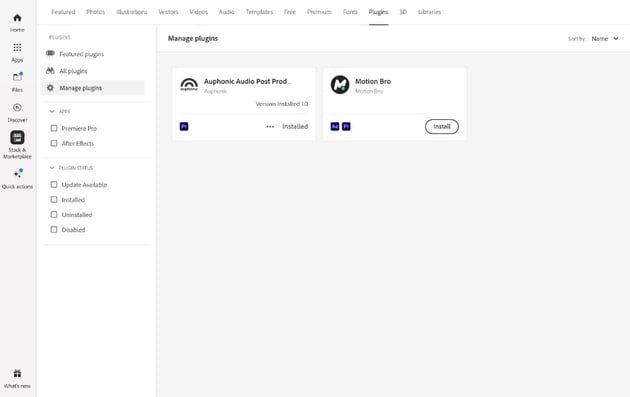

To manage plugins after install, return to the Creative Cloud app. There, in the Marketplace, click the Manage Plugins tab. Here, you can see all of your installed plugins at a glance. By clicking the three-dot menu on each, you can choose to Uninstall if needed.
The 5 Best Premiere Pro Plugins (For 2024 and Beyond)
There are hundreds of Premiere plugins available in 2024. These perform an array of tasks. Some link to stock libraries. Others add powerful features. And still others streamline edits to automate your daily workflows.
It’s hard to find the best Premiere Pro extensions. So, to help you get started, we’ve collected five of the best that are available today.
1. Knoll Light Factory
Need to get creative with your productions? Want to add cinematic effects like you see at the movies? Lens flare is a great way to do exactly that. Lens flare allows bright light to create image artifacts on purpose. It creates a bright, halo-like effect like that often seen in science fiction films. These effects are sure to grab the attention of your audience.

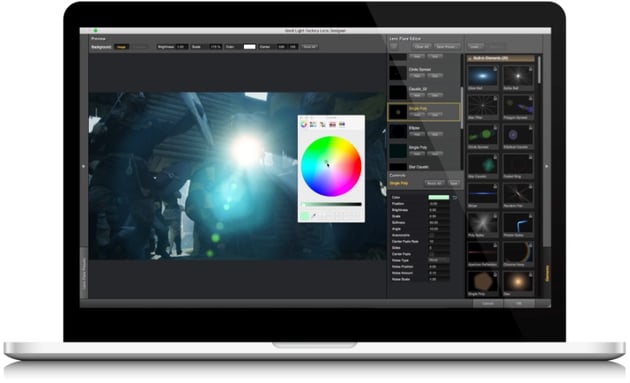

Adding lens flare can be challenging, because it’s a complex edit. Knoll Light Factory performs these edits automatically. These Premiere Pro extensions are made for adding lens flare. What's more: they work with footage that you have already captured.
2. Flicker Free
We’ve all experienced flicker in our footage. You know what it looks like: annoying flashes, haze, and more. It’s all too common, and hard to avoid when you shoot footage in challenging light. Flicker Free is a tool built to help you resolve tricky flickering in videos.
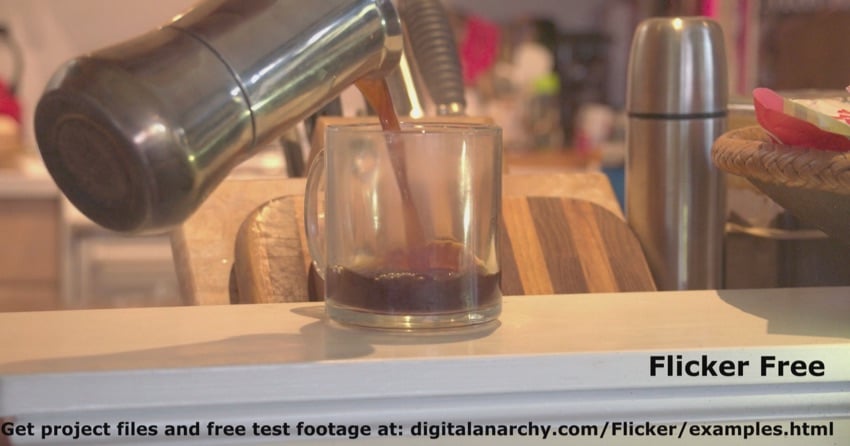


The primary focus of Flicker Free is timelapse flicker. Indeed, timelapses are a very common use case. With footage shot over hours and then sped up, flicker invisible to the naked eye becomes very visible.
You can use this extension to clean up any flickering found in your videos. Removing flicker is a key part of your editing workflow. It helps to ensure that your clips look their best.
3. Frame.io
Editing can often feel like a lonely, solitary process. But it doesn’t have to be. Why not leverage the power of your team to work together? Frame.io is a Premiere Pro extension that helps you do just that.


With Frame.io, you can collaborate with others in real time. This works in several key ways. For example, you can share content with others to build into your project. You can also collect feedback, log changes, and gather comments.
For advanced editing with a group, it’s an essential plugin. You can even link to external clients to give them previews and get feedback on how to handle tough edits.
4. BorisFX Mocha Pro
Most video editing apps have built-in tracking features. These help you to apply effects, follow a subject, and edit an area of a scene. This is truly a crucial feature in the world of post-production.
Mocha Pro is a tool that does tracking, but with much more power and accuracy. It has long been held as the gold standard of tracking tools.
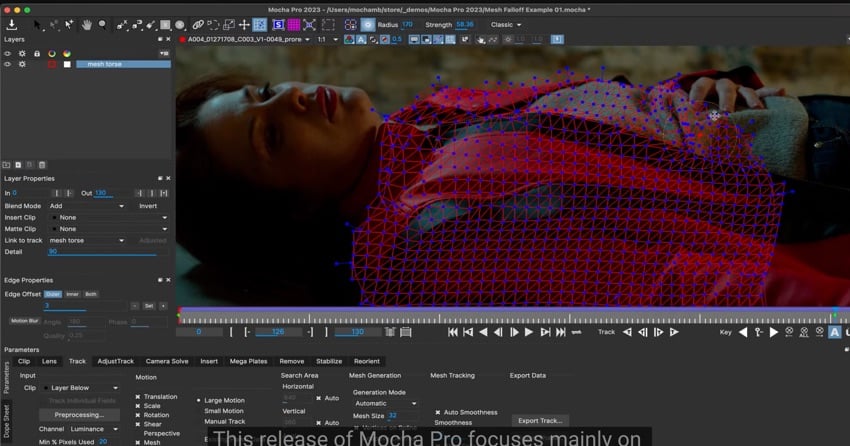
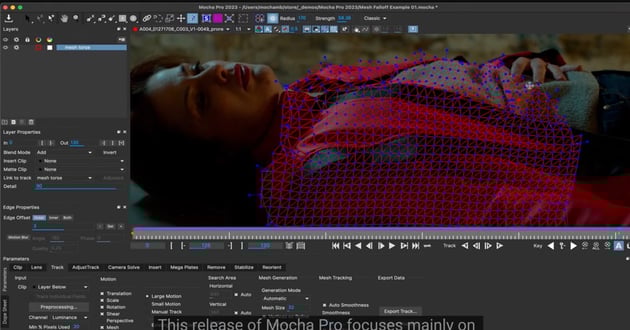
With a plugin like this, you have total control over select an area, following it over time, and adjusting the look and feel of that region. You could use this to move motion graphics across a real world scene, for example. The key is that it's highly accurate and saves you time versus manually tracking efforts.
5. FilmConvert Pro
Shooting video on film presents an unforgettable, timeless look. It’s also difficult and unwieldy to do, compared to the ease of digital. Fortunately, you can add the distinct look of film to footage that you already have. FilmConvert Pro is a set of Premiere plugins that help you add a film look to videos.



FilmConvert Pro is driven by camera profiles. These help you create film effects by matching to the digital cameras you used to shoot video. In doing so, it creates a realistic film effect by enhancing key areas of your clip. With these presets, you can smoothly tailor each clip for the film look you desire.
The Top Source for the Best Adobe Premiere Pro Templates (With Unlimited Downloads)
Premium Adobe Premiere Pro templates are the ultimate way to get the most out of your videos. They streamline edits and pack amazing features into easy-to-use layouts. The best source for these premium templates is Envato Elements. There, you’ll find thousands of Premiere Pro templates, with more being added every day.
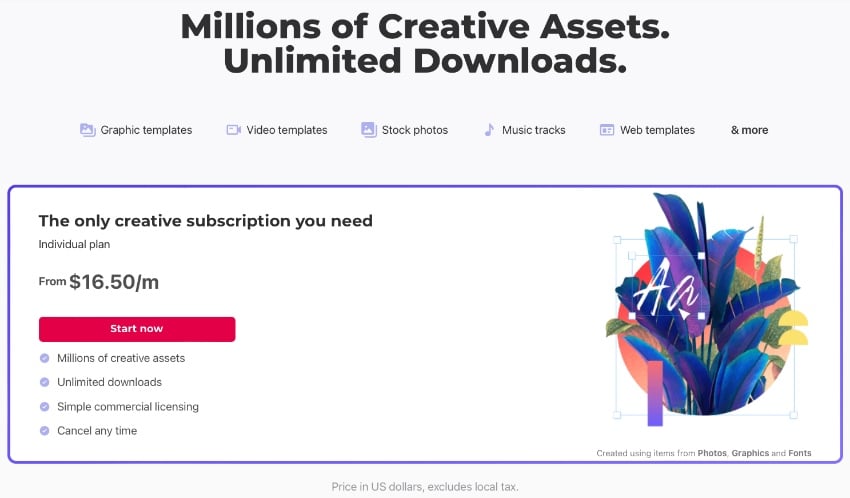
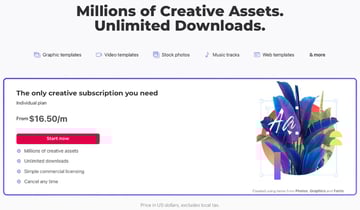
The Elements offer is powerful: unlimited downloads. For a flat monthly rate, you can download and use as many of these templates as you want. And that’s not all. Elements includes millions of other digital assets. Among these are fonts, stock photos, music, and so much more. Many of these can even be used in your video projects.
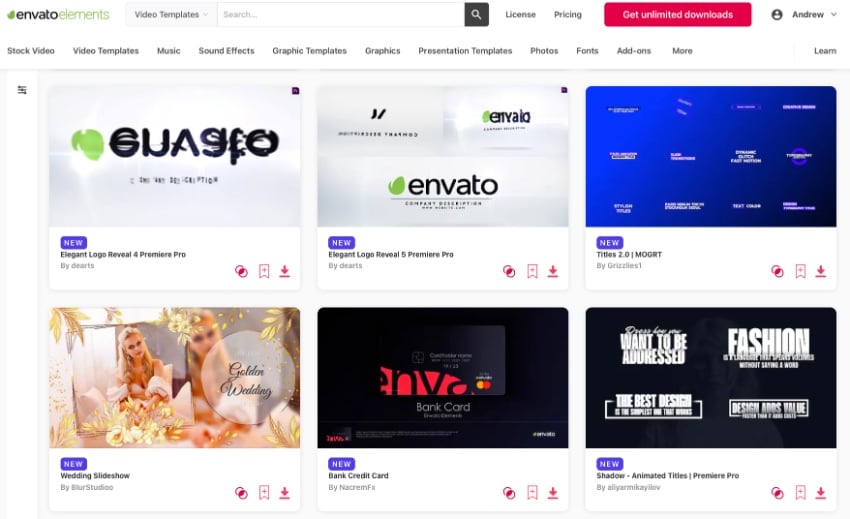


Embrace premium templates from Envato Elements and you will enjoy:
- Sleek layouts. These aren’t dull, flat designs. They’re robust, cinematic layouts built by video experts. Your needs are kept in mind throughout.
- Intuitive features. Odds are, you might not be a Premiere Pro expert. And you don’t have to be. Templates are intuitive and easy to use. Even expert editors will appreciate the time savings.
- Inspired themes. Generic themes are always an option. But why not choose themed templates that really enhance your footage? At Elements, you’ll find thousands of topic-specific Premiere Pro themes ready to use today.
You simply cannot afford to miss out on Envato Elements! Join today and get started exploring the vast content library. Unlimited downloads are just a few clicks away.
Explore the Best Premiere Pro Extensions and Plugins Today
Today, you learned how to add plugins to Adobe Premiere Pro. As you can see, it’s a quick and easy process. By adding the best Premiere Pro plugins, you can elevate the features of your Premiere install. You can save time, and enjoy new features to enhance your videos.
So, what are you waiting for? The options for Premiere Pro extensions are vast. Explore your options and install your favorites today. Every video that you produce will benefit from this. Get started today!
 By
By






