

In the vast universe of digital content, GIFs have carved a niche for themselves as a potent and dynamic storytelling tool. The power of these compact, looping visual narratives is undeniable. They bridge the gap between static images and full-length videos, offering viewers a condensed yet impactful visual experience. Whether it's a hilarious meme, an instructional guide, or a poignant moment captured in a loop, GIFs have become a language of their own in the digital age.
DaVinci Resolve steps into this scene as a versatile and user-friendly platform that transcends the boundaries of professional filmmaking. It's not just for the Scorseses and Spielbergs of the world. It's a tool for everyone, a palette for any digital creator looking to paint their story in the vibrant colors of GIFs. DaVinci Resolve makes the process of creating and exporting GIFs accessible and straightforward, embodying simplicity that would indeed have Hemingway nodding in approval.


In this guide, we'll dive deep into the process of creating and exporting GIFs using DaVinci Resolve. We'll unravel the steps so simply and intuitively that even a beginner can follow them with ease. But before we plunge into the how-to, it's essential to understand why GIFs are such a potent tool and how DaVinci Resolve fits into this landscape.
GIFs are more than just a trend; they're a communication revolution. They offer a way to express complex ideas, emotions, and narratives in a format that is easily digestible and shareable. They're the digital equivalent of a haiku - brief, impactful, and often poignant.
DaVinci Resolve is a powerhouse of video editing, and its capabilities extend to creating these digital haikus. With its array of tools and intuitive interface, anyone can create professional-grade GIFs that tell a story, evoke emotion, or simplify complex concepts. The software allows you to take your vision, however intricate or straightforward, and translate it into a looping visual narrative that speaks volumes.
One of the places where you can find high-quality digital content for your GIF creation is Envato Elements. With millions of professional-grade digital assets at your disposal, it offers an endless source of inspiration and resources for your DaVinci Resolve projects.
In the coming sections, we'll explore the step-by-step process of creating a bouncing GIF in DaVinci Resolve, followed by some tips and tricks to make your GIFs more engaging. Whether you're a seasoned professional or a newcomer to the world of digital content creation, this guide will equip you with the knowledge and skills to create and export GIFs in DaVinci Resolve.
Step-by-Step Guide to Creating a GIF in DaVinci Resolve
Step 1: Choose Your Footage. Creating a GIF starts with selecting the right footage. This is a crucial step because the essence of your GIF lies in the visual content you choose. It could be a short clip, perhaps a captivating drone shot that lasts just a few seconds. The key here is to pick something visually appealing and suitable for looping. Remember, a compelling GIF is all about capturing a moment that resonates with your audience.
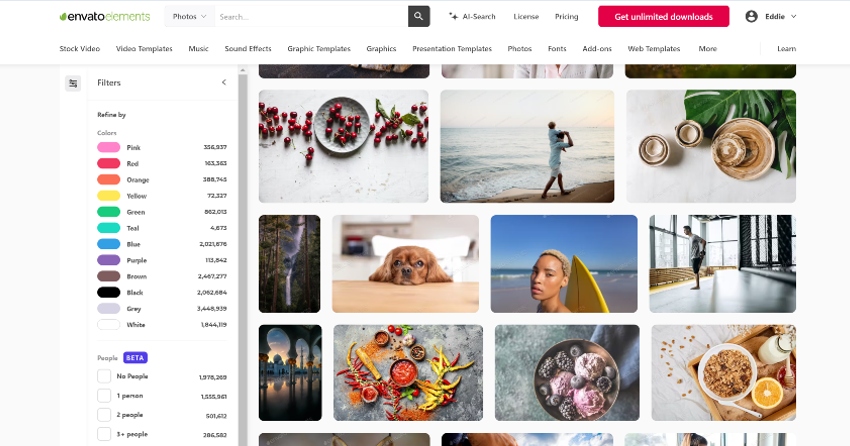


If you're looking for assets to enhance your creative projects, look no further than Envato Elements. From video footage to sound effects, it offers an impressive library to cater to your needs. While this tutorial didn't use any templates, there's a myriad of them available on Elements for various projects. It's worth checking out to save time and elevate the quality of your work.
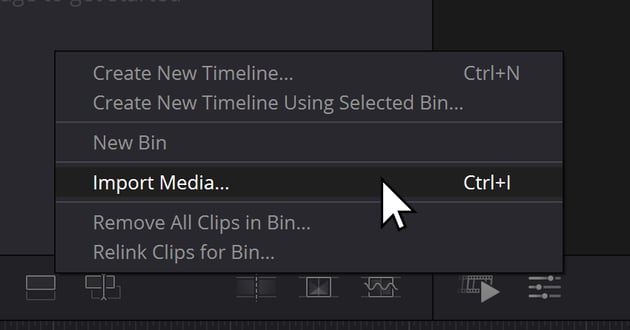
Step 2: Import your media. Once you've chosen your footage, import it into your workspace by 'right-clicking' in the import area, and choosing 'Import'.

Step 3: Adjusting the Speed. It's time to add some dynamism by adjusting the speed. Right-click on your chosen footage and navigate to 'Change Clip Speed...'.

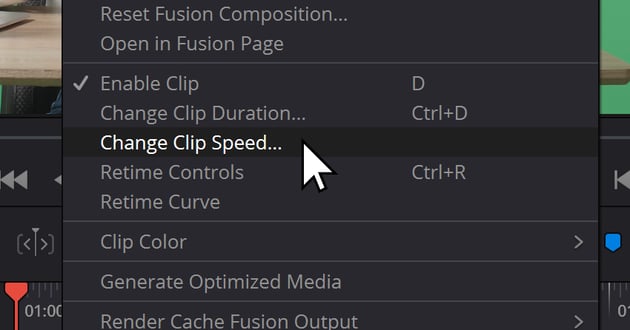

A dialog box will appear, allowing you to alter the speed of your clip. Changing the speed to 300 (or whatever speed works best for your clip) will make your footage play three times faster. This manipulation of speed can transform a mundane scene into something captivating and full of energy.
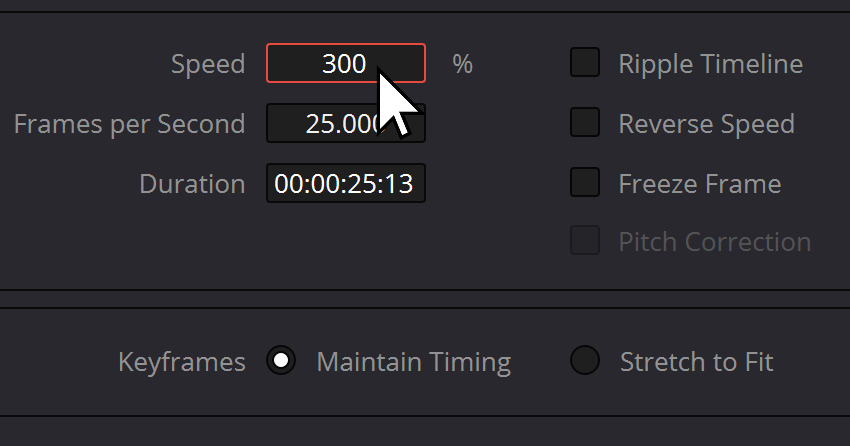


3. Trim and Reverse. The magic of a seamless looping GIF lies in its ability to play forwards and then immediately in reverse. To achieve this effect, first, trim the clip at the point where you want the loop to start reversing.
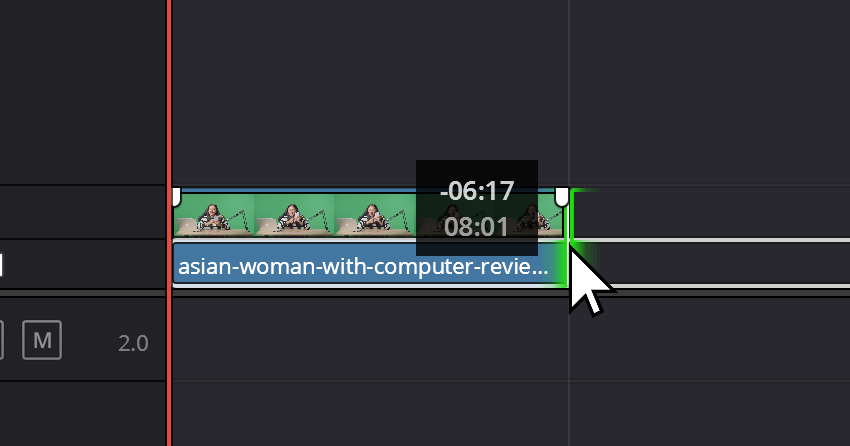
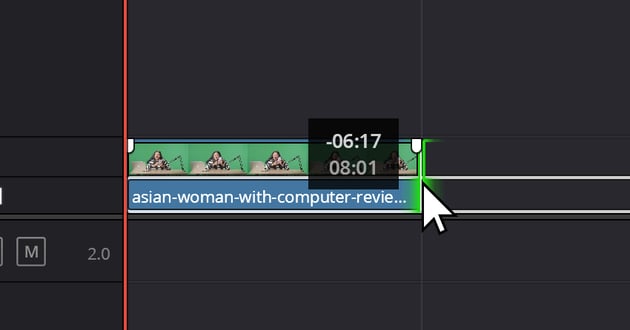
Hold down the Option key (or Alt key on Windows), highlight the piece of footage, and then click and drag it to the right. This action creates a duplicate of your clip.


Next, right-click on the copied footage and navigate to Change Clip Speed. This time, check the box that says 'Reverse Speed'.

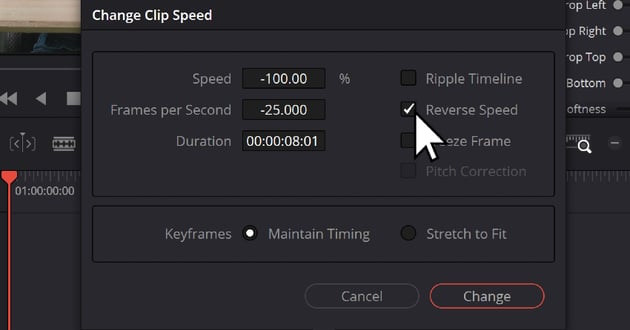
You should now have two pieces of footage: one playing forwards and the other playing in reverse. Together, they create a smooth, mesmerizing bouncing loop that can hold your viewer's attention.
4. Exporting as a GIF. With your GIF ready, the final step is to export it. We're going to be using the custom render settings. In DaVinci Resolve, accessing and customizing render settings for export can be achieved in the "Deliver" page.
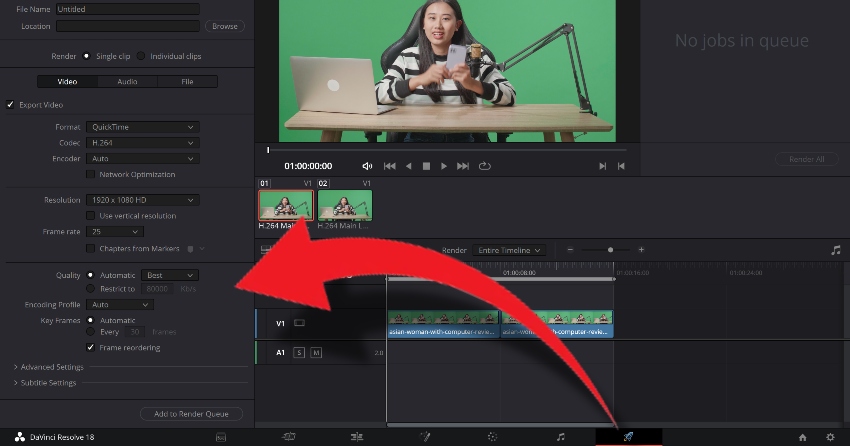


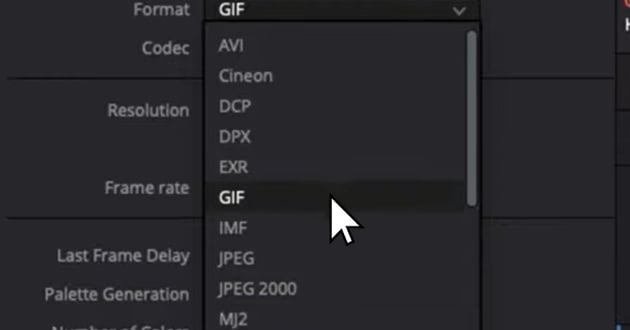
Using DaVinci Resolve 18.5+, go to the export settings. Under the video format, you'll find an option for GIF. Select this format and then choose your desired resolution. For quicker uploads and sharing, it's often wise to go with a lower resolution, like 720p.


Switch to the Deliver Page: Navigate to the bottom of the screen and click on the "Deliver" icon.
Click 'Save', add your project to the 'Render Queue', and finally, click 'Render'. Just like that, you've successfully created a GIF using DaVinci Resolve 18.5+.
Creating GIFs in DaVinci Resolve not only offers you a new way to express your creativity but also opens up opportunities to communicate in the language of the digital age. And if you're looking for unique and high-quality digital assets for your GIF creation, consider checking out Envato Elements. Their library boasts millions of professional-grade digital resources that can elevate your DaVinci Resolve projects.
Tips for Creating Engaging GIFs
Creating engaging GIFs is an art in itself. It's not just about choosing the right footage or mastering the technicalities of the software. It's about understanding the medium and its unique demands.
- The Art of Brevity: GIFs, by their very nature, are meant to convey a message quickly and effectively. They thrive in the fast-paced world of social media where attention spans are fleeting. A good rule of thumb is to keep your GIF between 2-6 seconds. This brief window is enough to capture and communicate a captivating moment without demanding too much from your audience. In the world of DaVinci Resolve GIFs, less is often more.
- Seamless Looping: One of the most mesmerizing aspects of a GIF is its ability to loop seamlessly. When executed well, it creates a continuous flow of action that can hold a viewer's attention far longer than its short duration would suggest. In DaVinci Resolve, creating a seamless loop involves playing your clip forward and then immediately in reverse. This bouncing effect ensures there are no jarring transitions between the end and the start of your GIF, creating a visual rhythm that can be both engaging and hypnotic.
- Quality Over Size: In the quest for quick loading times and easy sharing, you might be tempted to compromise on the quality of your GIF. But remember, a pixelated or blurry GIF can undermine your message and turn away viewers. So prioritize clarity and sharpness, even if it means dealing with a slightly larger file size. DaVinci Resolve offers comprehensive export settings that allow you to strike a balance between quality and file size, ensuring your GIF maintains its visual appeal without being too heavy.
- Use High-Contrast Visuals: GIFs are often viewed on small screens, which can make details hard to discern. To ensure your message comes across clearly, use high-contrast visuals that stand out even in small dimensions. DaVinci Resolve offers a range of color grading tools that can help enhance the contrast and make your GIF pop.
- Keep it Simple: While it might be tempting to cram as much information as possible into your GIF, remember that simplicity is key. Stick with one idea or moment and let it shine. Overloading your GIF with too many elements can confuse viewers and dilute your message.
- Incorporate Text Wisely: Text can be a powerful tool in GIFs, adding context or humor to your visuals. However, it's important to use it sparingly and ensure it's legible. DaVinci Resolve allows you to add text and customize its appearance to suit your GIF.
- Experiment with Effects: DaVinci Resolve offers a host of effects that can add an extra layer of interest to your GIFs. From slow motion to color filters, these effects can transform your footage and make your GIF more engaging. Don't be afraid to experiment and find what works best for your content.
Remember, creating engaging GIFs is about understanding your audience and what resonates with them. It's about finding that perfect balance between creativity and clarity, between brevity and impact. And above all, it's about telling a story, however short and simple, that captures the viewer's attention and leaves a lasting impression.
Conclusion: The Power of GIFs and DaVinci Resolve
GIFs have transcended their humble beginnings to become a powerful medium of expression in the digital age. They're not merely a fleeting trend or a passing fad. They're an ever-evolving language, encapsulating moments, conveying moods, and narrating stories in a format that is succinct yet impactful.

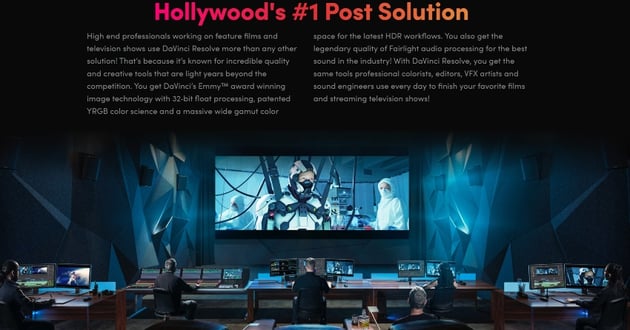

With tools like DaVinci Resolve, creating GIFs has never been more accessible. This professional-grade software offers a suite of advanced features, allowing you to craft compelling GIFs with precision and ease. Whether you're a seasoned designer or a novice creator, DaVinci Resolve empowers you to bring your visions to life in the form of looping visuals.
Creating a GIF is akin to writing a sentence, as Hemingway would say. It's about finding the truth in a moment and conveying it in its purest form. "All you have to do is write one true sentence. Write the truest sentence that you know." In the realm of GIFs, this translates to capturing a genuine emotion, a unique action, or a captivating scene and letting it loop endlessly. The simpler your GIF, the more powerful its impact.
As you venture forth in your journey of GIF creation, remember to keep it simple and focused. Let your content speak for itself, whether it's a breathtaking landscape, a playful pet, or a poignant moment. And never underestimate the power of a well-crafted loop, for it can turn a fleeting moment into an eternal story.
So go forth, harness the power of DaVinci Resolve, and let your stories loop endlessly in the form of engaging GIFs. In this digital dance of visuals, you're not just a spectator, but a creator. And every GIF you create is a testament to your unique perspective and creativity.
 By
By






