

Working with a large Adobe Premiere Pro project? Feeling like you have many clips you need to manage? You might be wondering how can you do that efficiently for faster edits.
That’s where Premiere Pro sequence settings come in. These settings really control editable parts of a given sequence. In other words, a sequence lets you merge an array of content together. Sequence settings in Premiere Pro control the output of your finished, exported video.
Let's learn how to change sequence settings in Premiere with this tutorial!
How to Change Sequence Settings in Premiere Pro (Step by Step)
So, what is a sequence in Adobe Premiere Pro? Think of these as the framework for your videos in Premiere. A sequence controls all of the multimedia in your Premiere project. In a sequence, you’ll arrange all of your clips, effects, music, and more.
Let’s look at some of the best sequence settings in Premiere Pro. We’ll work through the Sequence Settings menu in order. This way, you can see what sequence settings for Premiere Pro you’ll have to choose.

In this tutorial guide, you’ll see beautiful stock footage from Envato Elements in the background. Download it today to follow along!
1. Launch the Premiere Pro Sequence Settings Menu
A sequence in Premiere Pro is created when you have media on your Timeline. To learn how to change sequence settings in Premiere Pro, make sure you have multimedia there. Then, find the Sequence menu in the upper left of your screen.


Click Sequence, and then from the top, click Sequence Settings. You’ll find yourself on the Sequence Settings menu. At the top, you have two key settings to choose from. These are Editing Mode and Timebase.


Editing Mode really controls the format of your video. Not only does it consider the input, it looks at the finished output as well. It controls how your footage is shown, based on how it was filmed. Timebase controls the frames per second of your footage, and how you want to work with it.
2. Adjust Video Premiere Pro Sequence Settings
Below in the Adobe Premiere Pro sequence settings, find the Video group. Here, you’ll control the visual elements of your sequence. This is how to change sequence settings in Premiere to fit your projects.


At the top, you’ll see the Frame Size menu. Here, you can control the shape and size of frames in your sequence. Below, you can adjust the Pixel Aspect Ratio. For this, always be sure to consider the aspect ratio from your raw footage. It’s best to match this setting to your video file input.
Other settings here let you adjust Fields, Display Format, and Working Color Space.
3. Choose Audio Sequence Settings in Premiere Pro
Next, you’ll see Adobe Premiere Pro sequence settings for audio. The two key adjustments here are Sample Rate and Display Format. For Sample Rate, it’s often best to go with the defaults that apply based on your assets in use.
When you maintain the Sample Rate originally recorded, you’ll maintain quality. You’ll also avoid increasing file sizes.


The Display Format offers two options: Audio Samples and Milliseconds. Generally, Audio Samples is a good choice. Milliseconds provides more precise detail. These both control how audio waves appear in your Program Monitor.
4. Select Preview Settings
Last but not least, you’ll adjust Video Previews. These are the best sequence settings in Premiere Pro for taking a look at your soon-to-be finished projects. First, you can adjust the Preview File Format. Here, I like to use a common format like QuickTime. Codecs control the video codec of your previews.


Finally, you can control the height and width of your previews. Be sure that when you adjust these settings, you choose a realistic aspect ratio. This way, your video looks its best without being distorted.
Just like that, we’ve explored some of the main sequence settings in Premiere Pro! Often, in a project, you’ll want to use multiple settings for different results. You can explore these menus, and then explore the settings you need.
But for every sequence you work with, simply apply different unique settings and try different options. This way, you can ensure that each video looks exactly how you want. It’s that easy!
The Ultimate Source for the Best Adobe Premiere Pro Templates (With Unlimited Downloads)
Envato Elements is an unbeatable resource for creative professionals. For one flat rate price, you unlock thousands of professional Premiere Pro templates. You get professional grade templates that help you create your best project ever.

Elements has an unbeatable offer: unlimited downloads. When you subscribe, you'll instantly unlock everything required for a top notch video production. And that's not also. You'll also get unlimited access to stock photos, graphics, and audio. Elements is a video producer's best friend.
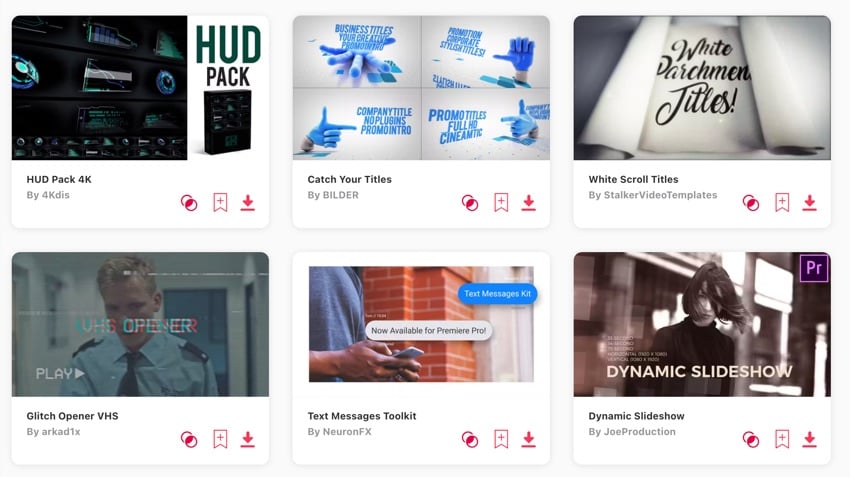

Elements is an offer you just can't beat. If you want the best results with less work than ever before, join today. In minutes, you'll be up and running with everything you need.
You Just Learned How to Change Sequence Settings in Premiere Pro
What sequence settings for Premiere Pro should you use? The answer is: "it depends." The important part is that you've now mastered the crucial Adobe Premiere Pro sequence settings you need to know for your production.
It's your turn to practice the best sequence settings in Premiere Pro. Open a recent project and experiment with what you just learned. In no time flat, you'll have every Premiere Pro sequence settings option down pat!
 By
By






