

You’re recording yourself speaking live in real time. You’re confident about your presentation, and you’re ready to succeed with your message and inspire your… but wait. What was it again? How does it go? What did you mean to say?
Even the pros don’t speak from memory on camera, and neither should you! CapCut’s teleprompter feature means you need never get stuck again.

In this quick tutorial, I’m going to show you how to quickly use CapCut’s teleprompter feature. Inside the free mobile video app, you can expertly build a script and read from it as you record yourself speaking. It’s immensely powerful and highly valuable for your spoken videos. And it’s so easy, you can set it up in seconds.
Why use CapCut’s teleprompter?
You’ve seen them on TV: public speakers reading their remarks off a teleprompter. These powerful tools are all too easy to mock, but anyone who has ever recorded themselves speaking will know their value. Teleprompter tools offer the best of both worlds: a script to read from, while maintaining full eye contact with the camera.
CapCut’s teleprompter feature lets you use a teleprompter for any video that you record on your phone. The benefits are many, and if you record spoken-word videos, you should embrace the app’s tools.
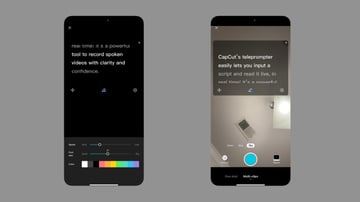
Think of this:
- Your delivery gets better. Even the best speakers can get the jitters when talking live. With a teleprompter, you can focus more on your appearance. You don’t have to waste headspace worrying about memorizing scripts.
- You’ll stay consistent. Using a teleprompter tool often helps your speaking stay consistent. You can effortlessly avoid straying off-message or omitting a key detail. It keeps your spoken narrative focused and to the point.
- You can focus on your presentation. Stage fright—a very real thing for anyone speaking on video—can often be avoided with a teleprompter. You can spend more time polishing your delivery, while eliminating the need to recall your words verbatim.
The benefits are clear. Let’s now learn how to use CapCut’s teleprompter tool, step by step.
How to quickly use the teleprompter in CapCut
CapCut is a multi-platform app. That means you can easily start using it on your favorite device! For this short tutorial, I’ll demonstrate the teleprompter feature on an iPhone. If you use Android, simply go to the Google Play Store and download CapCut from there. Desktop versions are also available for both Mac and Windows.
1. Open the teleprompter feature
Ready to use CapCut’s teleprompter? Begin by launching the app and navigating to the Edit tab. At the very top of your screen, you’ll see a row of menu options. They begin with Script to video, Smart Ads, and more.
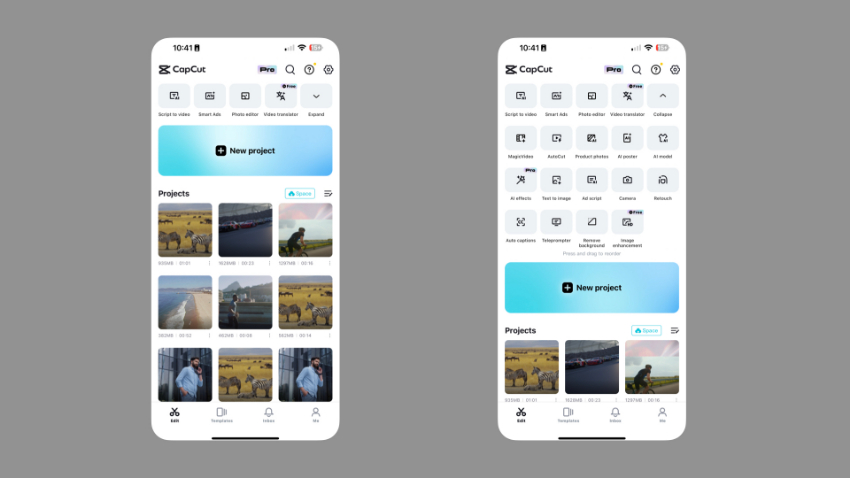
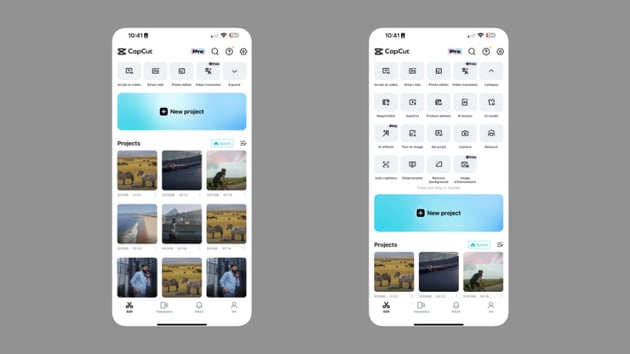
Look to the right to find the Expand dropdown menu. Tap Expand, and many additional options will appear. On the bottom row, second from the left, select Teleprompter.
2. Input your spoken text
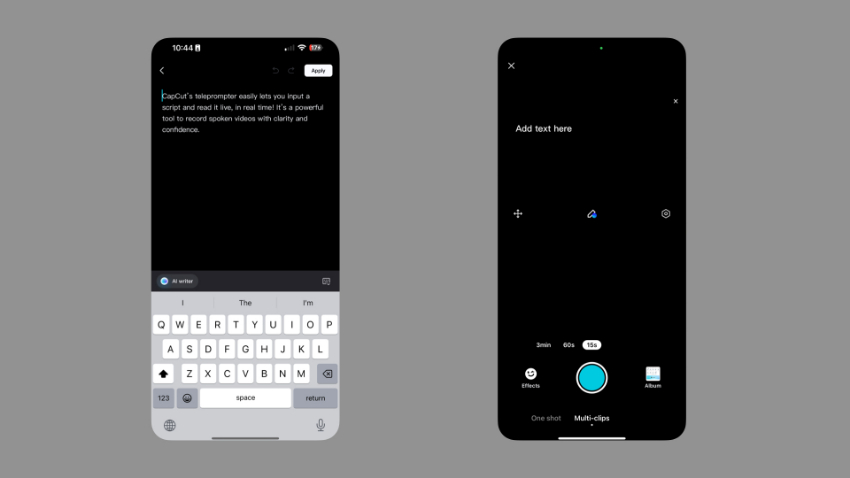
When you select Teleprompter, your device’s camera will be activated. And in the center, you’ll see a text box. This is the Teleprompter tool live and ready to go. Before you type in text, you can make a few adjustments.
For example, you can choose between Photo and Video recording. Plus, you can choose to move between multiple clips or stay on a single shot.
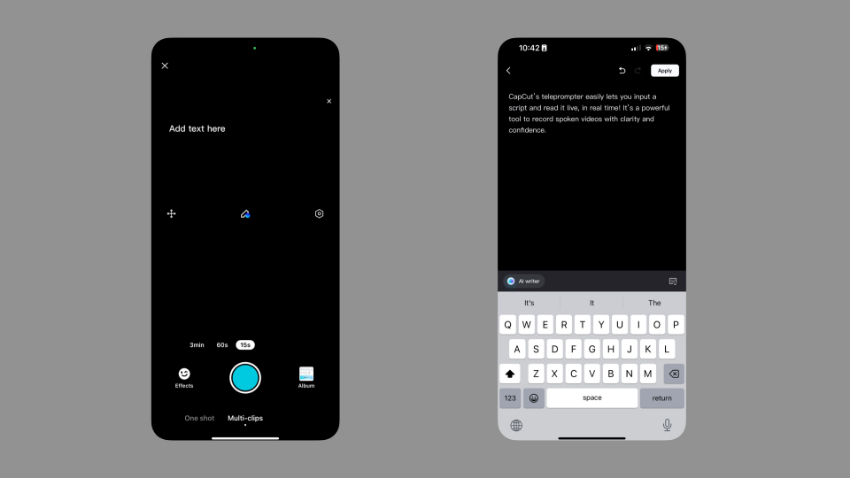

On this view, you’ll add your teleprompter text. These are the words you’ll be reading as you speak and record in real time. Tap the Pencil icon, and then type in what you want to say. When you’re finished, choose Apply.
3. Adjust the scroll speed
With text added, your last adjustment will be to the scroll speed. Think about how a teleprompter works: it displays the words you are to say at roughly the same speed that you’re speaking. By adjusting the speed, you’re controlling how fast your written words scroll by.

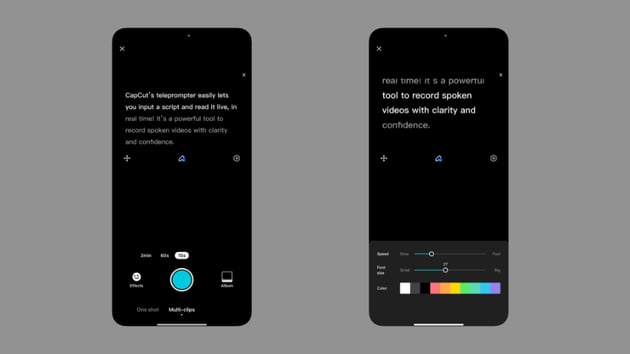
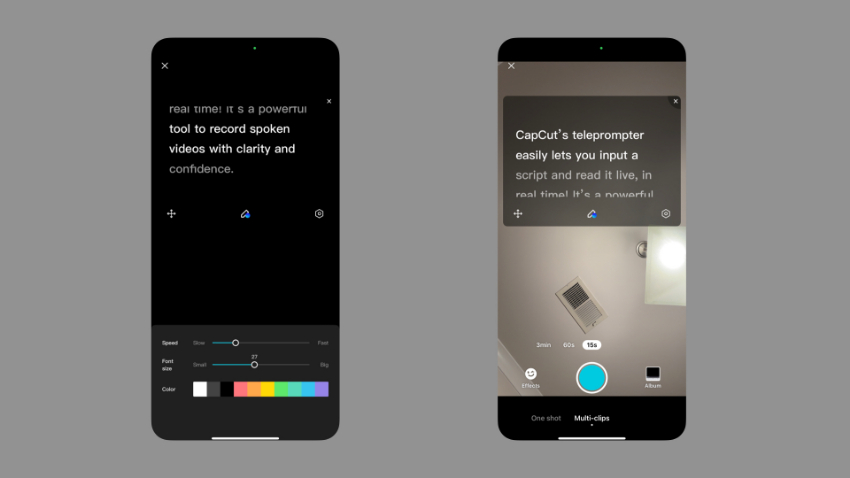
Find the hexagon icon on the right side of CapCut’s Teleprompter menu. Tap it, and the core adjustments will become available. At the top, you’ll see a slider for Speed. The default is Slow; you can ramp up to Fast or land anywhere in between. Your best bet here is to read through your teleprompter script a few times to determine your natural cadence. Then, set the speed to match.
Below, you’ll see a second slider to adjust the font size. And at the very bottom, you can change the font color to make it more readable.
4. Record with confidence
You’re now ready to record. In the lower center of your screen, press the Record button. A three-second countdown will appear. When it finishes, you’re live!
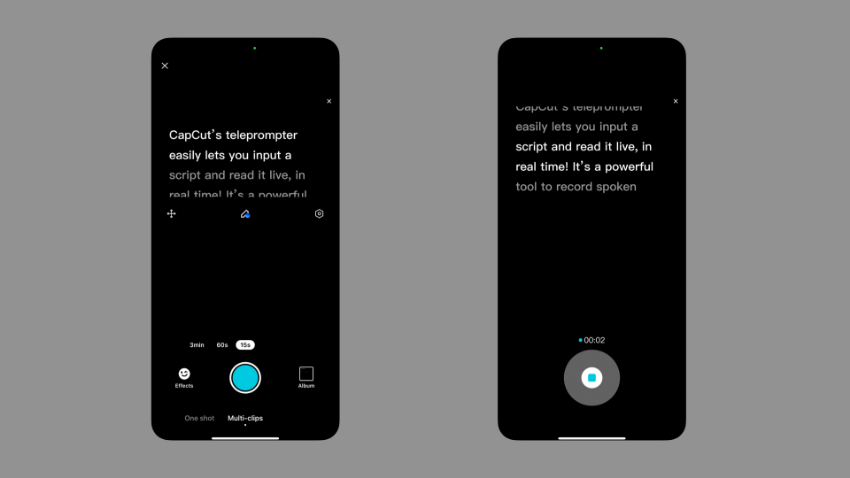

Your text will scroll across the screen as you record. You can speak confidently and clearly with your script right in front of you. Your audience will never know.
Learn more CapCut tips and tricks
CapCut’s teleprompter is only one of many amazing features the app has to offer. After reading, you may be inspired to boost your CapCut skills. Here at Envato Tuts+, we’re here to help! Check out these other top tutorials from our vast library. You’ll learn more about how CapCut works, and you’ll pick up useful new skills for your next video project:


 How to quickly apply blur effects to videos in CapCut


 CapCut: How to Quickly Use Green Screen (Chroma Key)


 How to Quickly Add Filters to Videos in CapCut


 How to Quickly Remove a CapCut Watermark


 How safe is it to use CapCut? Is CapCut safe for kids?
Use CapCut’s teleprompter for confident recording today
In this tutorial, you learned how to use CapCut’s teleprompter feature quickly. Open the app, tap Teleprompter, and type in a script. Then, you can adjust the speed and font size of your written words.
Tap Record, and you’re rolling—with absolute confidence, and no need to memorize your lines. This is a free and powerful tool to record better spoken-word videos with ease. Try it out today.
 By
By






