

Adobe Premiere Pro is a powerful and versatile editing app for video. With it, you can create productions using an array of multimedia. When you work with audio and video in Premiere, you have full control over your finished projects. And sometimes, you’ll want to work with audio and video separately.
In this tutorial, you’ll learn how to remove audio from video in Premiere Pro. You’ll learn how to split audio and video from a single clip into two tracks. And we’ll look at how to delete audio in Premiere Pro, once you’ve separated it from a video.
Let’s get started!
How to Remove Audio from Video in Premiere Pro (Step by Step)
When you work in Adobe Premiere Pro, you’ll likely find yourself importing video footage. In many cases, this video will include audio. This may be sounds that you’ve deliberately recorded, like dialogue.
Or it may simply be the background “clutter” sounds that your camera captured. Either way, it can be useful to work with the audio and video components of a given clip separately.

For this tutorial, I’ll demonstrate with an MP4 clip with background music added. You can find the video stock footage, Sailing Ships, at Envato Elements here.
I've added background music from Elements, which you can listen to and source at this link. They’re just two of the 15+ million digital assets Envato Elements has to offer.
Let’s learn how to remove audio from video in Premiere Pro, step by step.
1. Add a Video Clip to the Premiere Timeline
To learn how to remove audio from video in Premiere Pro, we’ll begin by adding a video to the Premiere Pro Timeline. Begin by finding a video file stored on your computer.
Then, click and drag to move it over the Timeline. The Timeline is right below the video preview (Program Monitor) section of Premiere Pro. Drop it into place, and watch what happens.


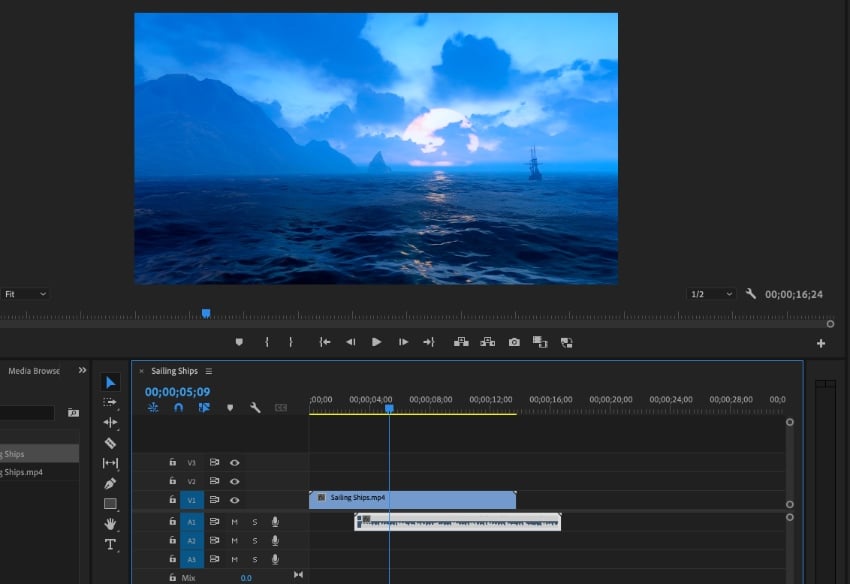
If your video has audio, watch as two tracks appear on the Timeline. At the top is the video itself. And just below, you’ll see the audio. While these look like two separate tracks, by default they are not. If you move one, the other will move with it.
They don’t work independently. This is where knowing how to unlink audio and video in Premiere comes in.
2. Unlink Audio and Video in Premiere
Unlinking in Premiere means what it says: you’ll break the link between the audio and video tracks of a given clip. It’s amazingly easy. Once you do, you can move and edit the two tracks independent of each other.


To unlink audio and video in Premiere, right-click on either track in the Timeline. From the list of options, click Unlink. When you do, notice what happens.
You can now click and drag either the video or audio portion of the clip around the Timeline. While they stay in sync, they’re no longer tied together.
3. Watch How to Delete Audio in Premiere Pro
We learned how to detach audio in Premiere Pro. But do you want to delete it? Sometimes, this is very useful. This way, you can add your own audio without being distracted by background sounds.
To see how to remove audio from video in Premiere Pro, click on the audio in your Timeline. This selects it. Then, simply press the Delete key on your keyboard.
Just like that, the audio will vanish. Now, you can keep the video silent. Or, you can add more audio to customize how your finished video sounds.


You just learned how to remove audio from video in Premiere Pro. As you can see, it’s a simple process. Unlink the audio and video tracks in a clip.
Then, delete the audio by selecting it. It’s a powerful, yet simple workflow trick you will use every time you edit video.
The Ultimate Source for the Best Adobe Premiere Pro Templates (With Unlimited Downloads)
Envato Elements is the ultimate source for the very best Adobe Premiere Pro project templates. These templates unlock a new world of creative flexibility. And with thousands to choose from, Elements has all your project needs covered.


At Envato Elements, the offer is unmatched: unlimited downloads. For a flat monthly rate, you can download and use as many of these premium Adobe Premiere templates as you want!
And that’s not all. Elements includes over 15 million other digital assets. Among these are fonts, stock video, music, and more.


Embrace Envato Elements’ premium content and you will enjoy:
- A vast library of digital content
- Stylish templates with inspiring designs
- Easy-to-use layouts with support tutorials included
- Themed templates for specific topics
It’s easy to see that Envato Elements is the winning creative value in 2023 and beyond. Click here to join today! Then, get started exploring the vast library and downloading your new favorite content. You can’t afford to miss out.
Unlink Audio and Video in Premiere Pro Today
In this tutorial, you learned how to remove audio from video in Premiere Pro. As you can see, it’s an effortless and fast process. Begin by unlinking the audio and video tracks from one another. Then, click on the separated audio track and press Delete! Just like that, it vanishes. And of course, with unlinked audio and video, you can keep both parts while editing them individually.
This is a powerful, easy way to gain greater control over your projects. We hope this tutorial about Premiere Pro on how to separate audio from video steps are helpful. So, what are you waiting for? Put your new skills to work today, and unlink audio and video in Premiere.
 By
By






