

Adobe Premiere Pro is one of the most powerful video editors on the market in 2024. One way that it stands out is through the ability to add amazing custom effects to any clip. Video effects in Premiere Pro help you transform any clip into something truly special.
In this tutorial, you’ll learn how to add effects in Premiere Pro. We’ll explore the various types and categories of effects that Premiere Pro has to offer. And we’ll cover some common questions and answers about effects in Premiere.
As a video editor, Adobe Premiere effects are a key tool that you’ll want to master. This tutorial has everything you’ll need to do exactly that!
What Are Adobe Premiere Effects?
So, what are Adobe Premiere effects? You’ve likely heard the term, but what does it really mean? In short, Adobe Premiere Pro effects are edits or enhancements that you make to a clip. Generally, this will be a video clip, but Premiere Pro includes audio effects too.


Think of effects as a quick way to apply adjustments to a clip. What Premiere Pro effects do is control the look, feel, and sound of your projects. They enhance or transform original clips (audio or video) in new and creative ways.
Effects may be used to boost the style through dramatic transformations. Or, you may find yourself using effects to enhance or clean up footage with visual issues. In essence, Premiere Pro effects are your creative toolbox.
Learning how to copy effects in Premiere Pro and use them is a key part of becoming a skilled editor. You could create them from scratch - but Premiere gives you power to add adjustments with just a few clicks. Let's learn more.
Where is Effects in Premiere Pro?
Video effects in Premiere Pro are housed on the Effects panel. Knowing how to open Effects panel in Premiere Pro is the first step. Like many Premiere Pro panels, it isn’t visible by default. But it’s very easy to launch.


To open Effects, find the Window menu at the top of your screen. Click on Window, and you’ll see a long list of options. These are the panels that Premiere Pro uses to help you edit. Where is effects in Premiere Pro? From the list, choose Effects and click on it.


When you do, you’ll see the Effects panel appear as a sidebar. Learning how to open the effects panel in Premiere Pro is a key step, and you've conquered it. Now, you’re ready to learn how to add effects in Premiere Pro.
What Adobe Premiere Effects Can I Add?
With audio and video effects in Premiere Pro, your options are virtually limitless. Dozens of effects are included when you install Premiere Pro. And many of these can be adjusted.
Consider, for example, the array of Blur effects. Each will have a default intensity, but you can adjust this manually. Plus, effects can be stacked or combined on a clip. With Premiere Pro, it’s easy to radically transform any clip to fit your needs.
Fixed Effects vs. Standard Effects: What is the Difference?
Adobe Premiere Pro has several methods for categorizing and classifying effects. Knowing this system helps you understand effects, what they do, and which ones are right for your project. The primary classification lies between fixed and standard effects. But what is the difference?
Fixed effects are those that come built in with clips. You don’t add them manually. Think of them as essential parameters that are captured in the raw video. Some of these effects include opacity, rotation, scaling, time controls, and more. These work with any clip and are controlled on the Effect Controls panel, which we’ll cover below.
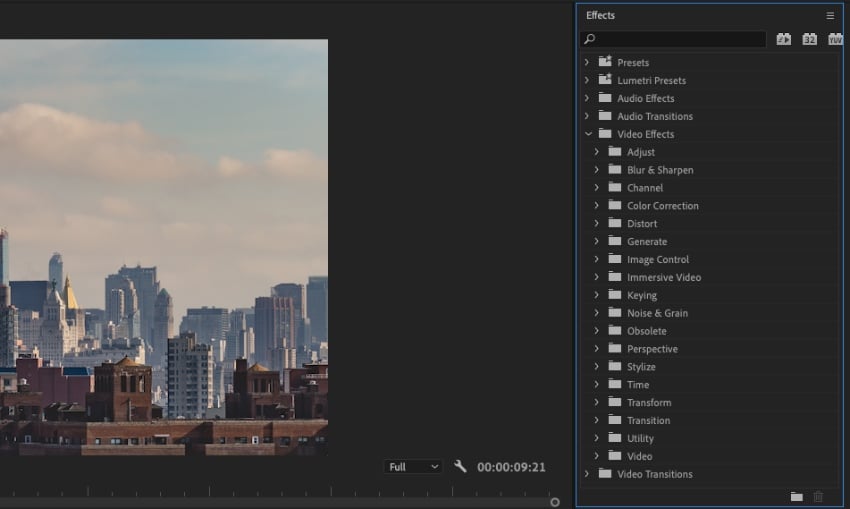


Standard effects are those that you apply yourself. These are the effects found on the Effects panel. Once you add them to a clip, you’ll also manipulate them with the Effect Controls panel. The difference from fixed effects lies in the fact that these effects won’t show on a given clip unless you manually add them to the clip. With standard effects, you can add as many as you want to any clip. And, they work alongside fixed effects. Both are critical parts of building magical effects for your project.
Types of Effects in Premiere Pro
Standard effects in Premiere Pro, as mentioned, live on the Effects panel. But what are your options on this panel? Inside, you’ll see several subfolders. The two to focus on are:
- Video Effects
- Audio Effects
These are logical categories that Premiere uses to classify types of effects. You can click into each of these folders to view the contents. What you’ll find inside are additional subfolders. These, in turn, will contain individual effects that you can add to a clip in your Timeline.
Video effects include, among other options:
- Color Correction. This allows you to adjust brightness, contrast, and more.
- Blur & Sharpen. Here, you can adjust the focus and clarity of a video.
- Distort. These are funky, dramatic effects for cinematic edits.
- Noise & Grain. These effects help you reduce noise and grain in a clip. Similarly, you can enhance these elements to make them more visible.
- Stylize. These are artistic effects. For example, you can make videos into mosaics, create brush strokes, and more.
Audio effects, of course, enhance or adjust the sounds in your video. You can apply them to spoken word tracks, music, and more. A sampling of audio effects includes:
- Amplitude and Compression. This contains effects like Amplify, Channel Volume, and Single-band Compressor. These are powerful audio edits that let you make precise adjustments to any sound.
- Noise Reduction/Restoration. Have unwanted background noise? These effects help you reduce or eliminate it.
- Reverb. This helps you control spatial audio.
- Time and Pitch. With these, you can shift the pitch of an audio track by adding the effect.
Of course, there are countless additional audio and video effects in Premiere Pro. The key to learning them is to explore and experiment! At the top of the Effects panel, you’ll also see a Search box. This helps you find specific effects without having to navigate through stacked folders.
How to Add Effects in Premiere Pro (Step by Step)
Now that you know some of the effects available in Premiere Pro, it’s time to learn how to add them. Again, you can add effects to any audio or video clip in your Timeline. Let’s learn how.
As we work, we’ll use beautiful stock footage from Envato Elements. Download it today to follow along!
1. Choose an Effect to Add
Remember, you already learned where is effects in Premiere Pro. As a reminder, you can open it from the Window menu.
With the Effects panel open, find an effect that you want to add. You can browse to it in the appropriate subfolder. Or, if you know the name of the effect, keyboard it into the search box at the top of the Effects panel.


Here, let’s plan to add a Gaussian Blur effect to the video clip shown in our Timeline. Find Gaussian Blur on Effects, and you’re ready to add it to the clip.
2. Drag the Effect to Your Timeline
On your Timeline, you’ll see your video clip appear as a purple bar. The Timeline is where you’ll add effects from the Effects panel. To add the Gaussian Blur effect (or any other effect), click and hold on the effect to select it. Then, drag the effect over the clip in your Timeline.

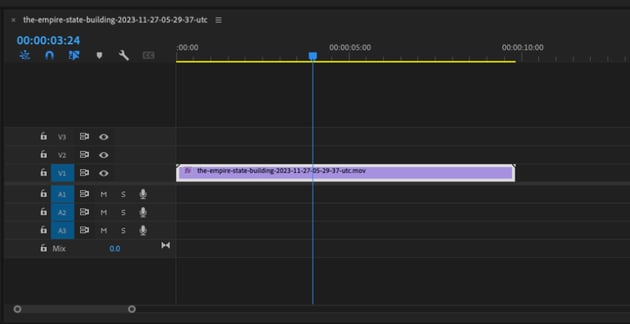
Release the click, and the effect will be added to your clip. It’s that easy. And of course, you can stack more than one effect on a single clip. Simply drag and drop more effects into the Timeline if you want to do this.
3. Adjust the Effect with the Effect Controls Panel
You just learned how to add effects in Premiere Pro. But notice what happens when you initially add an effect: visibly, nothing. That’s because you need to open the Effect Controls panel to control and adjust the effect.
To open Effect Controls, return to the Window dropdown. This time, click Effect Controls. You’ll see it appear as a new sidebar panel. Now, you’ll see the effect(s) that you added listed by name on the Effect Controls panel.
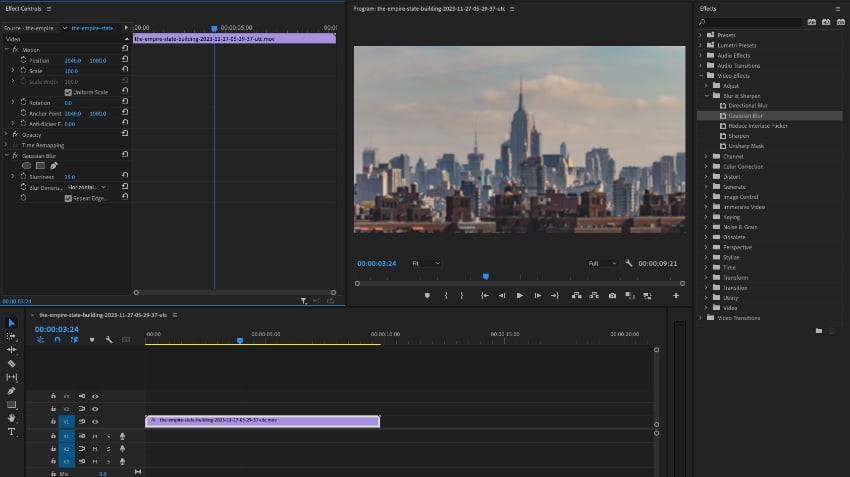


Here, for example, you can click on Gaussian Blur. Inside the subfolder, you’ll see a control for Blurriness. The default value is 0.0, which is why you didn’t see any change to the initial clip.
Choose a value higher than 0, and you’ll watch the blur effect appear on your clip. This is the process for any effect. Drag it to your clip in the Timeline. Then, manipulate it and control it with the Effect Controls.
This is also how to remove effects in Premiere Pro. Decide not to use an effect? If so, navigate to the Effect Controls panel and click on the name of the effect to select it. Then, press Delete on your keyboard. The effect will be instantly removed.
5 Frequently Asked Questions About Adobe Premiere Effects (2024 FAQ’s)
We explored an array of video effects in Premiere Pro. And you learned how to add effects in Premiere Pro with ease. But you might still have questions. What can Adobe Premiere effects do for you?
To help, we’ve answered five common questions about Premiere Pro effects. These help streamline your editing effects process even more!
1. Can I Add Title Effects to Premiere Pro?
Yes! Title effects are a vital part of many successful productions. You can use them for banners, captions, and more.
Premiere offers several ways to add title effects. For example, you can use Presets. Or, you can use title templates that come in a variety of styles. Combined, these let you add stunning text effects to any video in Premiere Pro.
Learn more here:


2. Does Premiere Pro Support Loop Effects?
Loop effects allow you to play clips over and over automatically. They’re often useful to add so you don’t have to continually hit “play.” Premiere Pro supports loop effects, and you can add them to any piece of footage that you’re working with. All you have to do is duplicate a clip one or more times. Then, place the clips in sequence on your Timeline.
For a full tutorial guide to looping in Premiere Pro, click here:


3. How Do I Build Video Caption Effects?
You have several options. Premiere Pro supports multiple video caption effects. Similar to adding titles, this is a good way to add text visuals to a video clip.
One option is to create a New Caption Track, and then add your custom titles. Also supported are sequence transcription and the ability to import captions from a file.


4. Where Can I Learn More About Effect Controls in Premiere Pro?
As you saw above, Premiere Pro’s Effect Controls menu is the nerve center for editing effects. But at first glance, it can be a bit daunting. With hundreds of effects and many adjustments for each, learning Effect Controls may sound tough.
Fortunately, it doesn’t have to be. We have a full tutorial on Premiere Pro Effect Controls. It tells you everything you’ll need to make the most of this powerful panel.
Read it here:
5. How Do Source Clip Effects Work in Premiere Pro?
Source clip effects are a leading way to save time in Premiere Pro. What they do is allow you to add the same effect to every clip in a sequence.
You can make adjustments once, instead of over and over again with each individual clip. For long and complex projects, these are essential tools to work faster and more effectively.


The Top Source for the Ultimate Adobe Premiere Pro Templates (With Unlimited Downloads)
The best way to work in Adobe Premiere Pro is with premium templates. These save you time, while bringing cinematic styles to each and every video that you edit.
The top source for the very best Adobe Premiere Pro templates is Envato Elements. For a flat monthly rate, you can download and use as many premium Premiere Pro templates as you want!
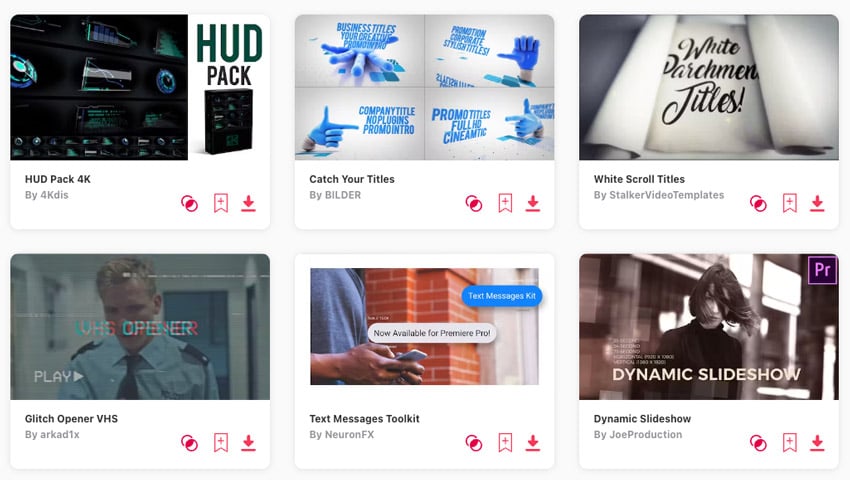

That’s just scratching the surface. Elements includes thousands of digital assets. These include fonts, music, stock photos, and so much more. Elements is the ultimate creative resource in 2024 and beyond. You can’t afford to miss out!


Now, Elements makes it easier than ever to source the perfect project content for all of your work. That’s thanks to the brand-new AI-powered search assistant. Simply describe your project needs in a few words.
When you do, Elements will present a curated list of the very best digital assets selected just for you. It’s an amazing way to save time while finding the perfect content for all of your needs.
Don’t wait! Join Envato Elements today and start exploring the vast library. You’ll never look back.
Start Adding Video Effects in Premiere Pro Today
This comprehensive tutorial taught you how to add effects in Premiere Pro with ease! You learned how to open the effects panel in Premiere Pro. You know how to remove effects in Premiere Pro, too. We also took a look at some of the countless effects that you have to choose from. And finally, we answered some common questions about effects in Premiere Pro.
Using video effects in Premiere Pro helps you make every video look its very best. And audio effects enhance your all-important sound effects. Why wait to get started? Explore the Effects panel in Premiere Pro today! In no time, you’ll transform your videos into something truly special and cinematic.
 By
By






