
 Lessons: 13Length: 1.3 hours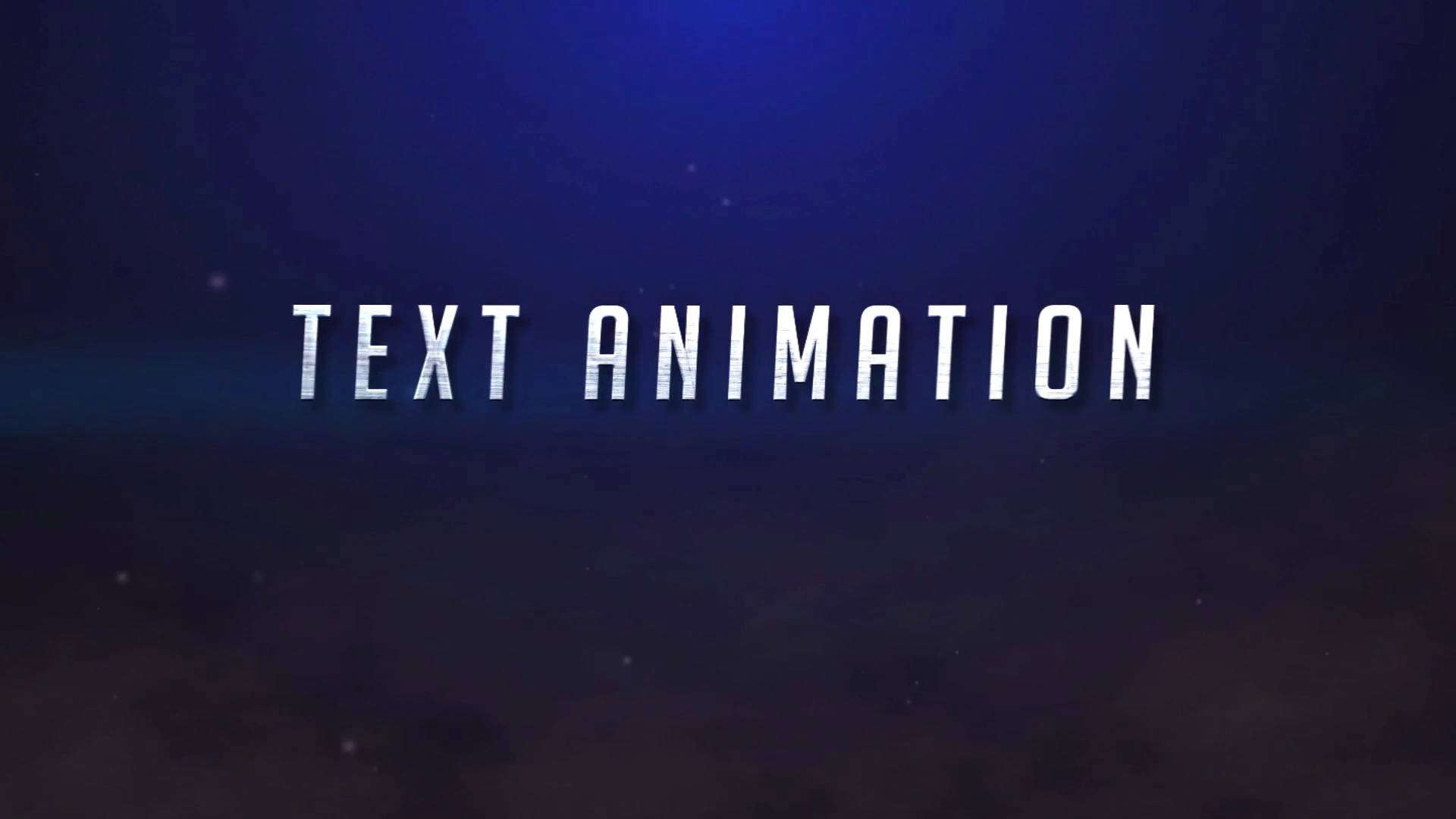
- Overview
- Transcript
5.1 Conclusion
In this video, we’ll go through everything we’ve learned in the course, and I’ll give you my final thoughts on the process of creating a cinematic text animation in Adobe After Effects. I hope you’ve learned plenty during this course! My name’s Jonathan Lam, and from all of us here at Envato Tuts+, thanks for watching.
1.Adobe After Effects Tools
1.1Welcome to the Course00:44
1.2Adobe After Effects Setup04:31
2.Cinematic Text Animation
2.1How to Animate Text08:07
2.2Adding Lighting and Shadow Effects11:54
2.3Adding Lighting Effects to the Background06:05
3.Creating Atmosphere
3.1How to Create Light Streaks06:55
3.2How to Animate the Light Streaks08:36
3.3Creating and Controlling Particle Effects11:12
3.4How to Create and Animate Atmospheric Smoke08:46
4.Final Touches
4.1How to Create a Quick Zoom Animation06:22
4.2How to Change Text01:36
4.3How to Render Your Video01:52
5.Conclusion
5.1Conclusion00:45
5.1 Conclusion
So with that we've come to the end of the Create A Cinematic Text Animation in After Effects Course. Now that you understand the basics of how to create a cinematic intro, you can experiment with different intro animations of your own. Such as using different color combinations, different lights, and different text. I hope you've learned a lot in this demo and that you can apply these skills to your own workflows. I hope you've learned some new things in After Effects that you haven't been able to use before. And that you can use them to create your own future animations and designs. I had a lot of fun creating this course. So thanks for watching, good luck creating your own cinematic text animations. And I'll see you next time on Tuts+.





