
 Lessons: 9Length: 50 minutes
- Overview
- Transcript
3.1 Importing Into After Effects
In this lesson you will learn how to import your Illustrator files into After Effects. We will also go through a quick explanation of my setup in Adobe After Effects and the tools you will need to complete the course.
1.Introduction
1.1Welcome00:31
2.Icon Design
2.1Illustrator Setup06:55
2.2Designing the Icons10:42
3.Animate the Buttons
3.1Importing Into After Effects03:50
3.2Animate the Mail Icon11:50
3.3Animate the Lock Icon05:31
3.4Animate the Shop Icon04:31
3.5Exporting the Buttons04:34
4.Conclusion
4.1Conclusion01:11
3.1 Importing Into After Effects
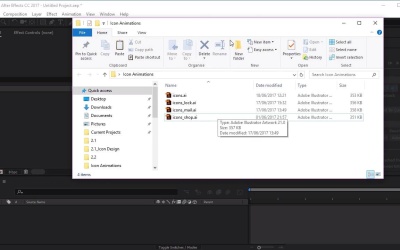
Hi everyone, and welcome back to the Animated Icon course. In this lesson we'll be going through how to save and export our icons into After Effects. So let's begin by saving each of our icons into individual illustrator files starting with the mail icon. We'll go over to File, Save As, and then just choose a directory for where you want to save your icon. I'm going to name this icon, Mail. I'm just going to save it on my desktop, then just keeping everything in it's defaults, we'll click OK. And we'll just go over to our lock icon. Make sure that this is visible, and remove the visibility for our Mail icon. So now that we've got our lock icon visible, we'll go over to File, Save As, and then just rename this icon, Lock. Saving it in the same place. And the same thing again with our shop icon. So remove the visibility for our lock icon, make our shop icon visible. Go over to File, Save As, and let's name this Shop. So now we have the three icons saved in their own individual files, let's head over to After Effects where we'll be exporting them. Okay, now that we're in Adobe After Effects, let's go ahead and import our Adobe Illustrator files into our new project. So heading over to where we saved our files, we will start with the mail icon. So all we need to do from here is drag and drop the Illustrator file into our project like so, and then wait for it to register. And then we're going to drag and drop the illustrator file into our composition, like so. Now from here, all we need to do right-click on the Illustrator file and go down to create shapes from vector layer. So once you clicked on that, we'll create a new sort of shape layer. And we can delete our Illustrator there. Now from here we want to open up this layer here, and where it says Add, we wanna click on the arrow button and select Trim Paths. Now from here, we can actually see how the animation will look, so we can test it out. So just go to Trim Pass, open it up. And then just using the mouse, we can sort of move from left to right. We can actually see how the animation or how the line follows the path that we created, which is pretty cool. Excellent. So that's how you import your Illustrator files into our After Effects. Let's go ahead and do the same for the other icons as well. So going back, let's important the lock icon. And we'll also import the shop icon too. So that's it for this video. In the next video, we'll go ahead and actually animate all our icons, starting with the mail icon. See you there.





