
 Lessons: 12Length: 1.2 hours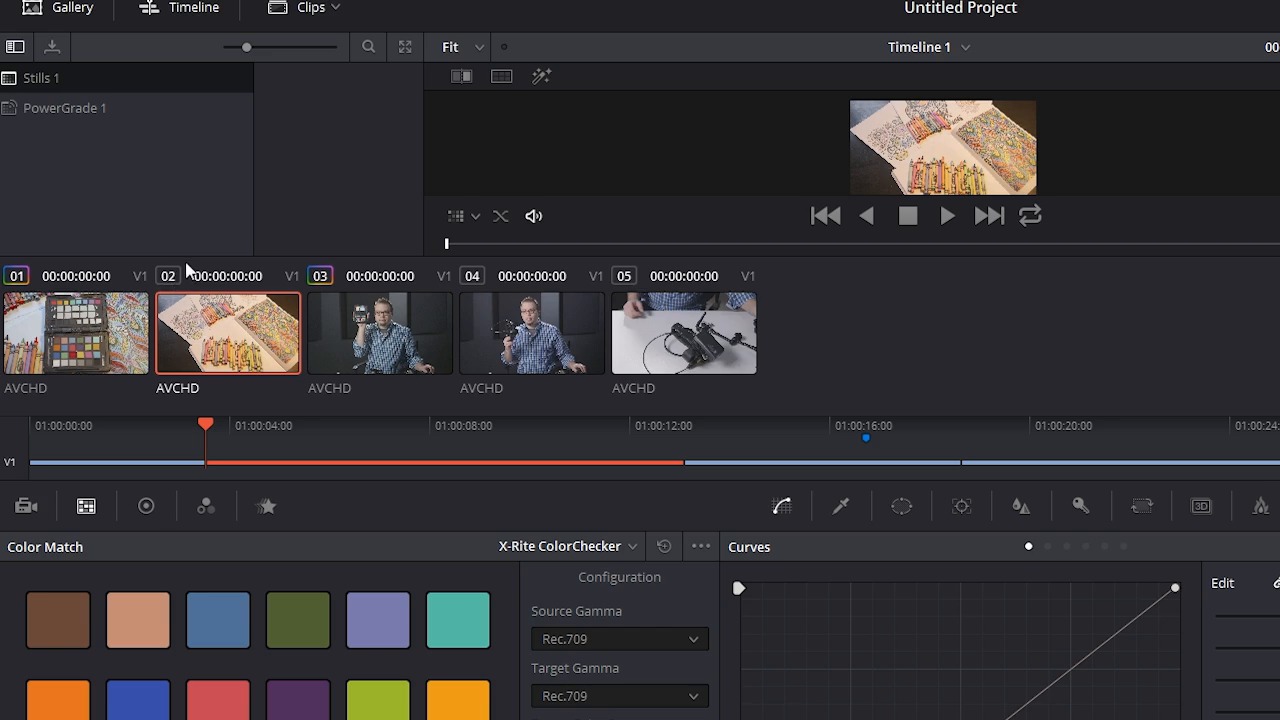
- Overview
- Transcript
4.2 Copy the Adjustment and Apply
In this lesson you will learn how to copy your adjustment and apply it to the rest of your clips.
1.Introduction
1.1Introduction01:12
1.2What You Need05:05
2.Getting Started
2.1What Is Color Correction?06:14
2.2When to Correct06:02
3.The Process
3.1Resolve Interface05:53
3.2Scope Basics07:01
3.3Import08:47
4.Color Correction
4.1Match Color06:37
4.2Copy the Adjustment and Apply02:59
4.3Tweak Individual Clips05:46
4.4Export08:12
5.Conclusion
5.1Conclusion06:26
4.2 Copy the Adjustment and Apply
In this lesson, you will learn how to copy the adjustments from your color matched reference shots to the other clips in the timeline. So, I want to jump back to the timeline here so you can see what I have going on. I have a reference shot, followed by the actual shot that I may be using in my sequence. Now this is just a demonstration, so you can get an idea of this process, so these clips are pretty short and some what meaningless. I shot these first two clips under some pretty wacky lighting. The second clips here are just a couple of things I shot in my studio using my Kino Flo Lights. So, what I wanna do now, we'll jump back to the color page here and I click on the clips, what you can see is by the clip number here, there's a little rainbow indicating that something's been done to this clip. I look over here in this Nodes window, you don't have the Nodes window. Gonna have to take the viewer out of this full screen larger mode here and then click on Nodes, you can see that this little icon here indicates that the shot has been color matched. Now, what I wanna do is take the color matching from these clips here and paste them on the other clips. I'm gonna get rid of the color chart here by choosing off on this little drop down here. In order to copy the adjustments to this clip, which you can see doesn't have any color adjustments made to it at all. I'll show you this really quick by just go and make any kind of adjustment here, you can see how that gets highlighted with this little rainbow. So just undo that. What I wanna do is use this reference shot here and apply that color matching to this shot. So really easy, with this clip selected, I'm going to middle mouse click the target or reference shot and that's it. It's literally that easy. And look at that, that now looks fantastic. Same thing with these shots right here. I'm gonna select these two shots by control clicking them and then I'm going to middle mouse click right here on my target clip and that has just applied those color match settings to these other clips. And it's just that easy. If I jump back over to the Nodes, you can see that the color match has been applied, you can see that right there and right there. So now my clips are color matched and I have a nice neutral starting point for any color adjustments that I may need to make from this point. Now, what happens if you've done the color match and maybe it wasn't a lit perfectly flat? Maybe you need to make some kind of adjustment. Well, you're gonna find out exactly how to do that coming up in the next lesson. So check that out coming up next.





