
 Lessons: 11Length: 55 minutes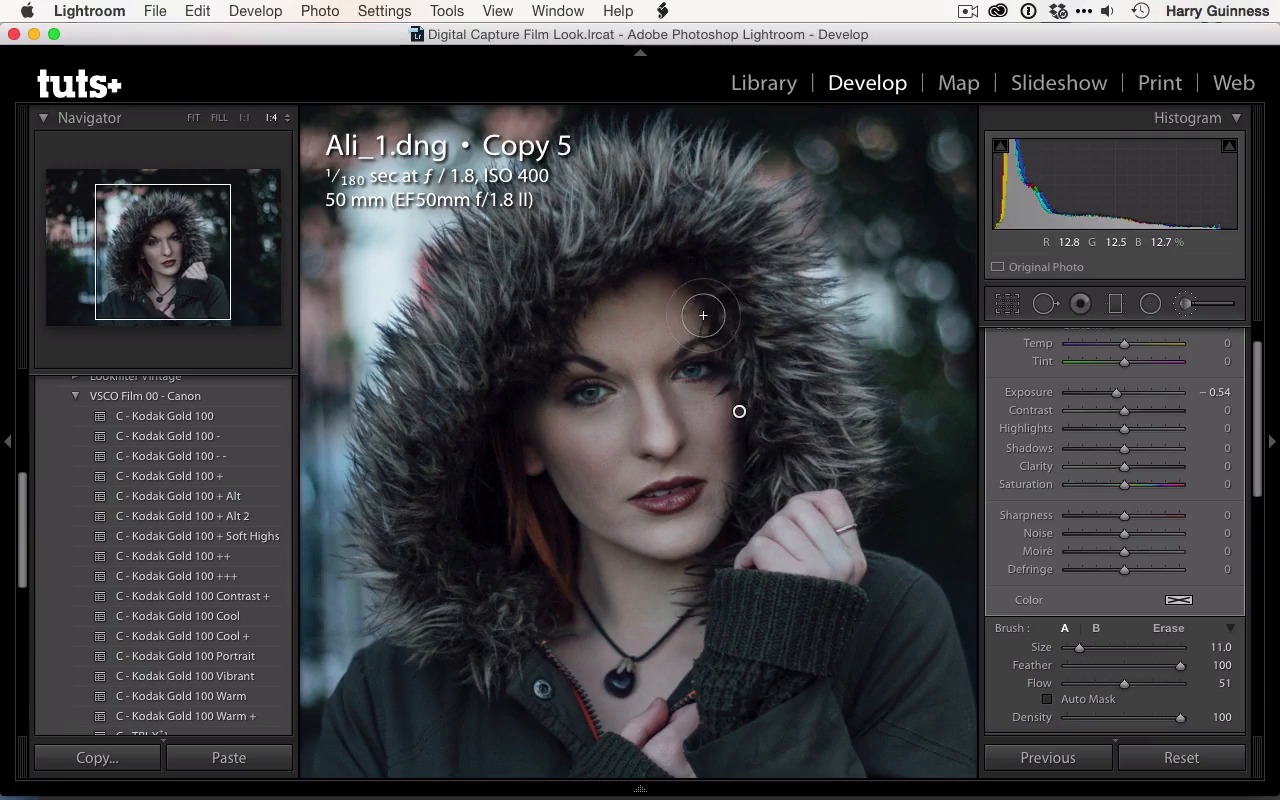
- Overview
- Transcript
2.4 Local Adjustments
Applying a preset isn't enough! The image still has some local issues, so in this lesson you'll learn how to apply some adjustments.
1.Introduction
1.1Introduction01:29
1.2What You'll Need02:26
1.3The Kodak Gold 100 Look04:41
1.4Intention and Consistency04:30
2.Lightroom, VSCO and Emulation
2.1Assess the Image04:33
2.2Bring the Image to Neutral05:54
2.3Apply the Preset05:26
2.4Local Adjustments12:30
2.5Finishing Off08:16
2.6Consistency in Lightroom03:10
3.Conclusion
3.1Conclusion01:51
2.4 Local Adjustments
Hi and welcome back. In the previous movie we applied the Kodak Gold 100 preset to this image and tweaked the sliders a little bit to get to this exposure which I'm pretty happy with. So it's now time to do the local adjustments. While I wouldn't actually recommend you create another virtual copy at this point, just so that I've got a step by step guide that we can walk through at the end. I'm gonna create a new virtual copy before applying the local adjustments. First thing you're gonna do is clean up work. So I'm gonna grab the healing tool in Lightroom, which is much improved in recent versions of Lightroom. I'm using Lightroom CC, which is available as Lightroom 6. And it really is on par with some of Photoshop's tools. You still wanna be using Photoshop if you've got any really heavy tidying work to do. But for what it is, it definitely works. We've got this little blemish here. I'm making sure that it is set to Heal so that it is gonna sample and then blend it in, rather than Clone which then just replaces it. So I wanna be using Heal mode. The size I am adjusting is my tablet, but you can also adjust using the slider there. I like to keep it fully feathered, so it's a nice soft blend. The opacity is at 100. We are not trying to diminish anything so much as just fully remove the blemishes. The one problem with doing this for clean up in Lightroom, is that because it's working on a rolefile, it's a little bit slower at processing everything than Photoshop. Photoshop working on the raster image, so it's actually changing the pixel values. Where as, Lightroom is updating a side car file that's telling the computer every time it displays something, to recheck pixels and to change pixels and things. So it's a far more complex series of maps, which is why Photoshop has had these tools for two decades, now the healing tools were a fairly early addition to Photoshop in the 90s but are only becoming part of Lightroom in the past few years. With the healing brush tool, in Lightroom CC you can paint brushstrokes rather than just removing single spots. It's important not to paint too big a brush stroke. It will blend unnaturally, and you can get some fairly ugly effects. You really shouldn't be operating on anything that's too much bigger than a spot or a stray hair or something. The other thing is, the white cursor you're seeing painted there isn't the full brush. That's including all the fettering and the opacity, so don't worry that it looks massive, the actual brush size is significantly smaller. That's just blend area that's being taken into account. I think get rid of that little blemish there. One more on the chin. I'm just moving around the image using the Spacebar to grab the hand and then my Wacom tablet on top to move. I think these are all the little blemishes. The problem with doing this sort of touch up work is the longer you spend zoomed in the more time you'll keep doing this. And you'll eventually end up just retouching pores. I'm gonna zoom out to about there, and then using the little switch toggle there, turn blemishes off and back on. Then you see the changes on the cheek next to her lip. And I think that has tidied up the main distractions. One of my favorite photographer, Chris Orwig talks a lot in his retouching about just reducing and simplifying. You're not trying to create shape perfect beauty portrait, you're just trying to simplify everything so that there are no distractions. And the people focus on the image rather than on the little blemishes or the discolorations and things like that. These are things your eyes miss naturally when you're actually looking at someone, but strangely see in images. Next, I'm going to grab the brush tool. I'm gonna start doing that dodging and burning on Allie's face that I mentioned in the plan. If you can remember that I said I was gonna be burning on the underside of her cheeks here, brightening just above that to increase her cheekbones, then I was gonna be brightening the chin a bit, on the forehead, on the nose, a bit on the lips. I might darken up the neck. I might darken up that hand. That's still a little bit bright. I'm also probably gonna brighten up in here. Possibly a bit of clarity. Maybe even some saturation. I'll see how I go. And keep that focus on the hair. I quite like the flash of orange there. So, I've got the brush tool. I wanna make sure it's mostly feathered. Flow works similar to how it does in Photoshop. When you paint back over an area, it adds in more of the effect. So at the moment, if I paint once it's only applying the effect at 50%. If I stroke back over it again, it applies to the next 50%. I like to work like that which means I don't have to constantly create new brushes to get a slightly stronger effect we want there. An exposure of minus half of step or around minus half a step is fine. Again, I'm just controlling the brush size with my Wacom tablet, but the size slider is there. I want it fully feathered, and I don't want Auto Mask turned on. It tends to get a bit weird, and it's very processor intensive. So I'm just gonna start by burning the undersides of Allie's cheeks here, just paint the brush stroke in like that, and then on the other side here. If you want to learn exactly where I'm painting, you can check out some of the new tutorials on retouching on Tuts+. You can also look at make-up artists, they are the experts of this, and see where they paint when they're contouring. That's really the best thing you can do to learn the best places to be dodging and burning all your images. I'm also just gonna emphasize beside the nose there. And then the end if I do the turn off and turn on, you can see that's just heightening the definition of her cheek bone a little bit. Going to grab a new brush. Click on the New, and then I'm gonna reverse this effect. I want to have a half a step of dodging. If I don't click New, and I move that slider, it's gonna actually change the brush strokes I've already painted. So, I'm gonna start with this one by painting a nice, big highlight on the center of her forehead there. I'm gonna reduce the brush size a bit and then just paint in the second brush stroke, that's why I like to work with a slightly lower flow. Resize the brush again, paint in the brush above her cheek, on that cheek, down the center of her nose and paint in a little one there. I'm gonna brighten up the lips a little bit, just scratch this in. Like this is quite good. Then chin, and again paint a smaller highlight in the center to really emphasize the effect. Let's have a look at the before and after of that. That's including the burning from earlier as well. I really like the effect that's going on there. Next, I'm going to do her eyes, I think. So I'm gonna grab another new brush. I'm gonna increase the exposure a little bit. I'm gonna do her eyes with two separate brushes. So we'll start with creating a little bit of a dodge. That a little bit closer in, because if you have any hard transitions it can look a little bit weird. So it's important just to feather everything, that's where the brush is fully feathered and that's why I'm working with bigger and smaller brush strokes. Now grab a new brush stroke then. And then I'm gonna add some clarity, so I'm gonna do about 11 on the clarity slider. And dial the exposure back to about 30. Then I'm gonna zoom right in, and I'm gonna paint this effect into the eyelashes and into the pupil. And you can see that this is really bringing the texture and color in her eye, and we'll just paint it back over again. Once I zoom back out you'll see that this gives it a really nice what's often called pop by a lot of photographers. I can push H to hide those pins, if they start to get in the way. So turn this off and on, you can see that's having a nice, natural enough effect on the eyes. It's not overblown, it's nothing that would distract you, but it's really making her eyes pop quite nicely. Next, I'm actually gonna paint into her hair here and reduce the flow down to about 30. And then I'm gonna use the same brush to paint in and just affect the details in there just to bring a little bit of texture back in there. You can always reuse brushes in moving things like flow is one of the best ways to do it, because you can just paint things with different levels of strength into different areas. Finally, I'm just gonna do a little bit of burning. That hand is too bright, it's annoying me a little bit. And if it's annoying me now, it's only gonna annoy me more. The important thing to remember is if you move more than one slider, to reset it. You can see I'm using both Exposure and Clarity, and when I click a new brush, I can't just dial the Exposure down to -50. And if I do, it ignores the clarity. You can also work with brush presets, as you can see we'll show it now. That the effect, I've got the drop down menu with various effects. I prefer just to dial them in by hand most of the time, because now working with presets for this sort of thing, it's okay but I prefer to have more control of the image and the presets really don't save that much time. So we've got the flow back at 50. I'm just gonna darken up around the neck and then darken up on the hand. There, I can see, it's just pulled back quite nicely. I'm gonna zoom right back out, and we'll have a look at what we've done here. So, turn that off. Turn it back on, and I'm really quite happy with that effect. I think I might do one final thing, which is just brighten up the area around Allie's eyes a bit more. She is getting a shadow cast on them from the hood, so I think a final dodge brush is gonna be the way to solve this, so just paint in something like that. Again, something like that is gonna brighten up the area and just really pull focus to her eyes in a way that I like. Yeah, I'm really happy with that. You can see that her hand has dialed back. It's no longer the distraction it was. Her eyes are popping. There's a great bit of focus on her face that we're gonna pull up more in the next movie. In the next movie we're gonna look at finishing off this image. We're gonna add in the vignette. We're gonna check out the film grain that's been applied by the Kodak Gold 100 preset and apply a little bit of sharpening and export the image so that we can share it anywhere we'd like to.





