
 Lessons: 19Length: 2.6 hours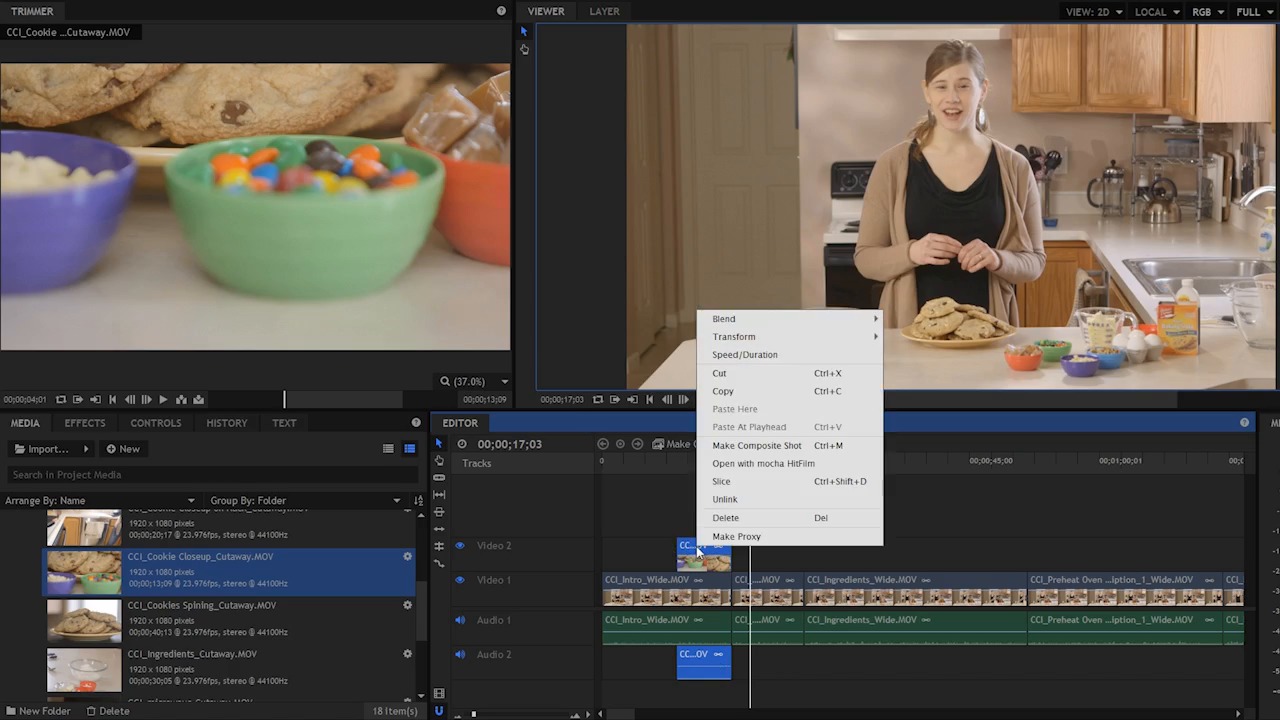
- Overview
- Transcript
4.5 Add a Cutaway Shot
In this lesson you will learn how to add cutaway shots to your video!
1.Introduction
1.1Introduction01:10
1.2What You Need05:03
2.Getting Started
2.1File Structure09:39
2.2A Quick Tour of HitFilm09:30
2.3Import and Organize09:53
3.Set Up Your Project
3.1Proxies and Transcoding09:24
3.2What Is Video Editing?09:50
4.Editing Basics
4.1The First Cuts Are the Deepest10:02
4.2Add Clips to the Timeline07:37
4.3Refine the Edit, Part 110:20
4.4Refine the Edit, Part 208:51
4.5Add a Cutaway Shot08:19
4.6Build on the Basic Edit12:37
5.After the Edit
5.1Color Correct and Grade09:39
5.2Sweeten the Audio08:03
5.3Video Effects and Transitions08:53
5.4Export04:35
5.5Compression09:06
6.Conclusion
6.1Conclusion01:08
4.5 Add a Cutaway Shot
In this lesson, you will learn how to add cutaway shots to your video. In film and video, a cutaway shot is the interruption of a continuously filmed action by inserting a view of something else. Sometimes this is called B-Roll. B-roll is supplemental or alternative footage intercut with the main shot. And it's a technique that's used to indicate simultaneous action or a flash back or some kind of illustrative point. For example, as Cheryl is talking about these cookies here. Wouldn't it be nice to have a close up of the cookie so we can see them in more detail, especially as she's describing the detail. You can also use cutaway shots to patch holes or fix mistakes. For example, when I first started adding clips to the timeline here. I picked a part of Cheryl's intro from one take and the back portion of the intro from a different take. And so if I play these back, there's kind of a weird jump-cut here. >> Wow, easy. Hi, my name is Cheryl Ziegler and it- >> So you can see the frame jumps to a later time. Well, I know it's later but it technically could be an earlier time. And, that does not look super great, a jump cut is pretty jarring. So, one way that I can fix this, is to add a cutaway shot. And the cutaway shot will not only fix this because if I put a cut away shot right here when we cut back from the cutaway shot, we're going to be cutting back to the same shot, but the viewer is not going to know that it's a different portion or that there ever was a jump cut there. So I'm gonna look in my cutaway folder here, and I'm pretty sure I have a shot of cookies. I'm looking at the list view here. If I jump over here, I'm gonna click the preview mode and that's going to give me a little thumbnail of each one of these shots here. So, I have this cookies spinning cutaway shot, let's see what that looks like. Okay, so this is some kind of turntabley typed thing. And, the motion is a little herky jerky, but I do believe there is a portion in here that I can use. I also have a cookie close up cutaway. CCI_Cookie Closeup_CutAway. That is good aliteration right there. Let me play this so. Okay, a little rack focus and we do a little tilt up. That's quite nice. Yes, and then okay, wow, well so, some of that's nice. [LAUGH] So, let's see if I can use that here to fill the gap between these first two shots. So, having seen the entire clip, I know that there is a huge zoom here that's not so good. So, I'm going to mark an out point there and I'm just gonna roll back in time here by clicking and dragging and there's a little bit of wobble here. What I would like, is I want this to start kind of right on this move up. If we're looking at kind of a rack focus and a little wobble here, that's gonna look confusing to the viewer. Because, they don't really know what to look at, the motion is a little bit uncertain so, I wanna start right when the motion goes up. And, for this shot, I'm gonna get it pretty close here in the trimmer and just hit I. Now, I want to add this to the timeline here, but here's the thing, I don't necessarily need the audio component of this shot. I really only need the video. I'm not sure if there is any audio on this clip, almost certain that there isn't, but I definitely don't need it. And having the audio down here is more stuff that I have to look at that I don't really need. So, I can add the clip to the timeline, and I can unlink it by right clicking here, and choosing Unlink, and then when I do that, I can select the video and the audio separately. So I could just select the audio and then delete it, and then I just have the video here, which is what I want. Or, I can hold Alt and drag, from the trimmer down to the timeline, and now, I just have the video. Now, I haven't released the mouse yet, because I wanna show you if I drag down here, now I just have the audio. So, I'm holding Alt and I'm still holding the mouse button down cuz I wanted to show you that you can grab the video. And you can grab just the audio by holding alt, clicking and dragging it down here to the audio track. And you can grab just the video by doing the same exact thing except you release your mouse up here in the video tracks. So that's one way that you can just add the video. So now I have I have this cutaway shot, and let's see how how this plays here. Just gonna roll it back a little bit. >> It can be daunting trying to find just the right recipe. Not flat, not too dry, delicious flavor, picture perfect, and best of all, easy. Hi. >> I would say that that is pretty close. It wasn't perfect, the timing wasn't fantastic. Let me see if there is something that I can do to refine that. [INAUDIBLE] And I'm just gonna mute the audio here while I scrub because that gets a little annoying. I think, I only want to go until right about here. Because after this point, the cookies go full out of focus. I don't think that works to go much past this point right here. Now we're just gonna trim it back to this point. But the problem is, now, if I move this here, the clip is going to come in at an awkward point. So I'm going to re-enable to audio on this track here and play it again. >> Not flat, not too dry, delicious flavor, picture perfect. And best of all, easy. Hi. >> So, that works, but it comes in late. What I'd like to have happen is, I wanna cut to the clip just before she starts describing all of those attributes. Not flat, not dry, yadda, yadda, yadda. So, when I need to do is somehow make this clip longer. If you remember back to the previous lesson, I can do that by using the Rate Stretch tool. So I'm just gonna click and drag, and I can tell by looking at the audio bumps down here. This is a representation of the audio. It's quite low, but I can use it. And, I wanna start this clip right about here. So I'm just gonna click and drag with the Rate Stretch tool right to there. And now this clip is gonna play back slower. So let's see if it works. >> Just the right recipe. Not flat, not too dry. Delicious flavor, picture perfect, and best of all, easy. Hi, my- >> I think that works pretty well. If anything, I think perhaps I can trim up the beginning a little bit, because I wanna get to the cookies a little bit more. So, I'm just gonna cut out a few frames here, wanna zoom in, and then I'm gonna use the Rate Stretch tool to bring it back to where it was before. Slowing it down even more and if you wanna know, this is slow down 76%. >> Recipe. Not flat, not too dry, delicious flavor, picture perfect, and, best of all, easy. Hi, my name is- >> And see with that cutaway shot, now, the viewer would have never known that the intro was cut up into two separate takes, we have a bit from the second take and bit from the third take. Because with that cutaway shot, we're really gluing things together. And that's gonna make a lot more sense for the viewer as opposed to having that jump cut, which really doesn't look that great. Now that you understand the basics of adding a cutaway shot, you're ready to move on and learn how to build out the rest of the edit. In the next lesson, you are going to use the skills that you've learned so far to start building out the sequence.





