
 Lessons: 19Length: 2.6 hours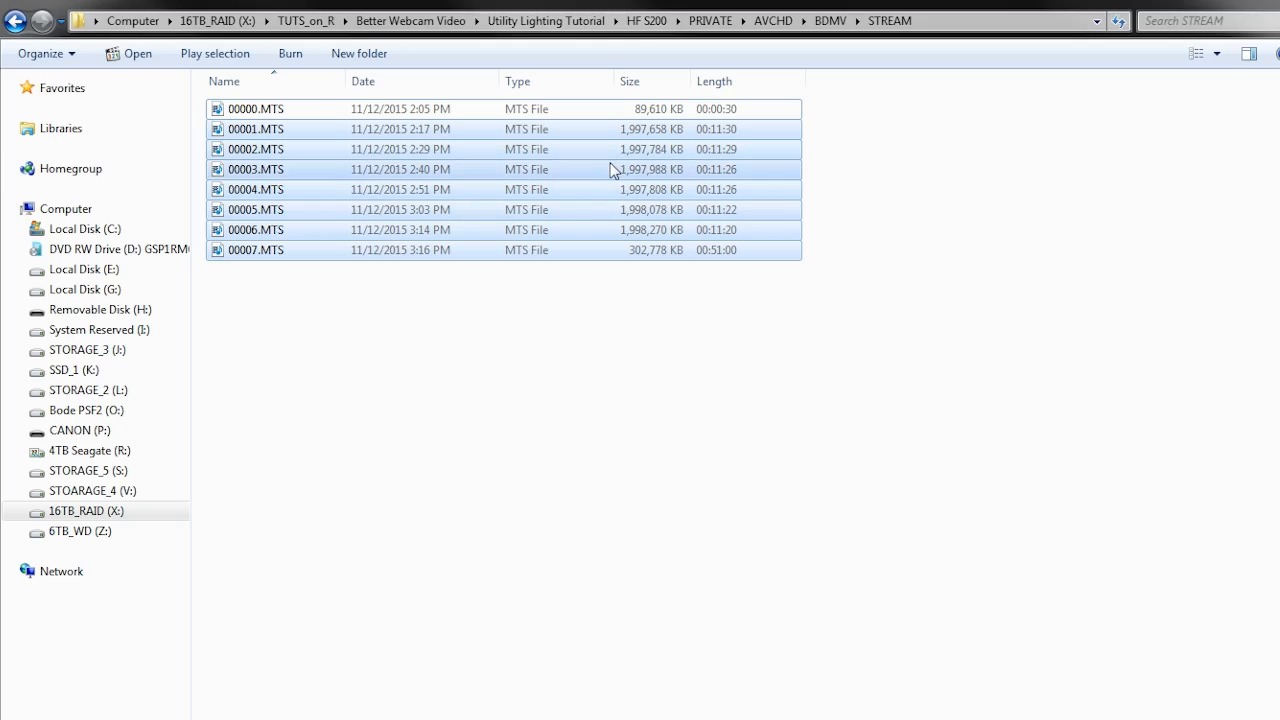
- Overview
- Transcript
2.1 File Structure
Before you start pulling your footage into your editor, it's important to do a bit of organization of your files first. This is a critical step with some cameras, because if you get the folder structure wrong, your footage won't work properly. In this lesson, you will learn how to do some basic file organization.
1.Introduction
1.1Introduction01:10
1.2What You Need05:03
2.Getting Started
2.1File Structure09:39
2.2A Quick Tour of HitFilm09:30
2.3Import and Organize09:53
3.Set Up Your Project
3.1Proxies and Transcoding09:24
3.2What Is Video Editing?09:50
4.Editing Basics
4.1The First Cuts Are the Deepest10:02
4.2Add Clips to the Timeline07:37
4.3Refine the Edit, Part 110:20
4.4Refine the Edit, Part 208:51
4.5Add a Cutaway Shot08:19
4.6Build on the Basic Edit12:37
5.After the Edit
5.1Color Correct and Grade09:39
5.2Sweeten the Audio08:03
5.3Video Effects and Transitions08:53
5.4Export04:35
5.5Compression09:06
6.Conclusion
6.1Conclusion01:08
2.1 File Structure
Organizing your media and assets inside your editor is important. But it's also important to make sure that your media, assets and other files are organized outside your editor too. This is a critical step with some cameras because if you get the folder structure wrong, your footage won't work properly in some video editors. In this lesson, you will learn how to do some basic file organization. So you're looking at one of the hard drives on my computer here. This is actually a 16TB RAID that's about half full. A little over seven and a half terabytes of media of all kinds. And when you're dealing with video editing and multimedia assets, the number of files and the file sizes can get out of hand pretty quickly. So, keeping them organized is definitely important. First, I just wanted to give you a few tips on file organization and folder structure. So, if I jump into this folder here, it's TUTS_on_R. You can see I have a bunch of tutorials and courses that I've work on here. And, I'll just jump to one that I did recently here. In this folder, I have about 283 GB of assets. Now, this contains all the video from my educational course on better webcam video, and it also contains all the footage and other assets that I needed for two tutorials that I did that went along with this course. So, if I jump in here to one of these tutorial folders, you'll see that I have this broken down in a few sub-folders. I have a C100 folder here. This is the camera, the main camera that I used to shoot this tutorial. I have a final video folder, this is where I put the final video files and all of those kind of finished assets. And they're all under this main Utility Lighting Tutorial folder. I have footage from another camera, a Canon HF S200, and I have some photos for this tutorial. So, if I jump into one of these folders, you'll see that inside this HF S200 folder, and if I drill down into each one of these, you'll see that there are a bunch of folders and there are some kind of weird files in here. But in this folder right here, this STREAM folder, this is where all the actual video files live. And this is what I was talking about before. This particular camera shoots in two different modes. It'll record videos in MPEG4 where they have an extension of .mpeg4. And it will also record videos in AVCHD which uses a slightly different codec. And when it's recording with the AVCHD flavor of codec, it puts the files in this structure here. This private folder here is exactly what came off the camera. And, I did that because, if I jump in here under details, what you'll see is there's one short video here with a length of 30 seconds that was probably just a little test clip. And then there's a big, long, video clip right here. Now, I know to you this actually looks like seven different files. But I know that when I recorded this, this was actually one video clip, but these particular cameras take longer video recordings and they break them up into smaller files. They're either broken up into 2 gigabyte, or maybe 4 gigabyte chunks depending on the camera. And, even though I recorded a 01:59:35 video, it broke the files up into roughly 2 gigabyte chunks until this very last video right here. If I were editing this, what I would want to see is this one long video clip. Because if I pull these files in, which are supposed to be one long recording, if I pull those into a video editor, what I'll get is breaks between each one of these files. Even if I butt the clips right up against each other, right at the beginning and the end of each one of these files, there's some codec weirdness where you may see some weird blocky artifacting, it may drop a frame, the audio may drop out, it's definitely not what it's supposed to be. There will be some kind of break between these files. And that's not good because it's supposed to be one long recording. So the reason I have these video files in this somewhat strange folder arrangement here, is because if I preserve this folder and file structure here with some video editing applications, I can import the footage and instead of seeing all of these clips here, I'll only see two clips. I'll see this first, short clip, and then I'll see this second, much longer clip, which was recorded as one final. And that's exactly what I want. In that second long clip, when I import that I won't have breaks between these individual files, it'll just look like one long file, and it will play exactly like you think it would. Like you thought that you recorded it. Now, with some other editors, like HitFilm, which is what we're going to be using for the rest of this course, that's not the case. And we need to approach these longer clips in a different way, which is something that I'm gonna talk about in an upcoming lesson. But, if you ever plan to use a different editor down the road, or they update HitFilm to work with these particular video files that have been broken up in this way, you'll want to have this folder and file structure preserved so that it'll work. Because if you take these out of this STREAM folder, and you put them, let's say, just under this HF S200 folder, they'll play just fine but there's no getting back that ability to have them all linked natively inside your editor. So, that's just something you wanna consider. It's generally my practice when I stick in a memory card. I take the folder that comes up, so you can see my card reader here. What I do, is I just take this folder here, this PRIVATE folder, and it may be called something else on your particular camera, but on this camera it has all those weird, folders and files in it. I take this one PRIVATE folder and I pull that over into another folder that's named appropriately. That way, I can get access to any clips that have been spanned or broken up. And that's generally the best way to go about it. Many, many cameras record videos in this way. In fact, if it has an AVHD label on it, which almost all of them that I've seen in the last five years do. They record video like this. So you'll need to know how to preserve this folder and file structure so that you can get access to any longer clips that you may have recorded that have been broken up into smaller bits. Other than that, that's really all you have to worry about. Some cameras don't shoot like that. For example, some DSLR's when you look on the memory card, you'll just see a list of files inside a folder called DCIM along with all the other photos. And that's totally fine, you can just get those right off the card and put those in a folder. You don't really need to preserve any folder or file structure there. This is really only something that you have to worry about for those cameras that shoot in AVCHD. Now, I wanna jump into another folder here so I can show you a little bit more of how I like to organize things. Again, I like to put things in groups so, if I was even more organized, what I might do is create a folder called Live Action Footage and put the C100 and this Canon HF S200 folder in there because both of those contain live action footage with humans. But, everything in this folder here is footage. I have a folder here called OBS and inside of here I have screen recordings from my computer. I have a few sub folders inside this Canon HF S200 folder. In each one of these, I have this PRIVATE folder, and I've name kind of a parent folder here with the subject matter of whatever it is that I was shooting. In my C100 folder I've done the same thing. Just created a few pair of folders here and then put the PRIVATE folder right from the cameras card inside of this folder, and then named it appropriately in whatever way made sense to me at that time. Now I have another folder here called B-Roll. And, in this particular case, I took the files right from the camera and I put them in this folder. And, I did this because none of these are longer clips. None of these had been broken up into smaller bits. And so, because I knew that, I knew that I would be safe to put these in a folder without all of that other kind of folder structure with the private AVCHD and all of that other jazz. What I like to do to these shorter clips, if I have shorter clips, is to just keep things a little more simple and that way I can actually name the files and that helps me keep track of things in the future. In particular, I like to have the shorter little B-Roll clips named with as much detail as possible because if in the future I need to search for these, it's very handy to have this information right in the file name here. That's pretty much it. A very simple way to do it, is to just group things by their asset type. Put pictures with pictures, graphics with graphics. It's a basic thing to do. It helps in the future if you move to another video editing platform. A lot of times you can just take folders and drag them right in, depending on what they are. So, it makes sense to keep things organized in that way. So now that you have the basics down for folder and file organization, and you know how to preserve the folder and file structure from those cameras that shoot in AVCHD, you're ready to move on to the next lesson. In the next lesson, you're gonna get a quick tour of HitFilm which is the video editing application we're gonna be using for the rest of this course. So check that out coming up next.





