
 Lessons: 19Length: 2.6 hours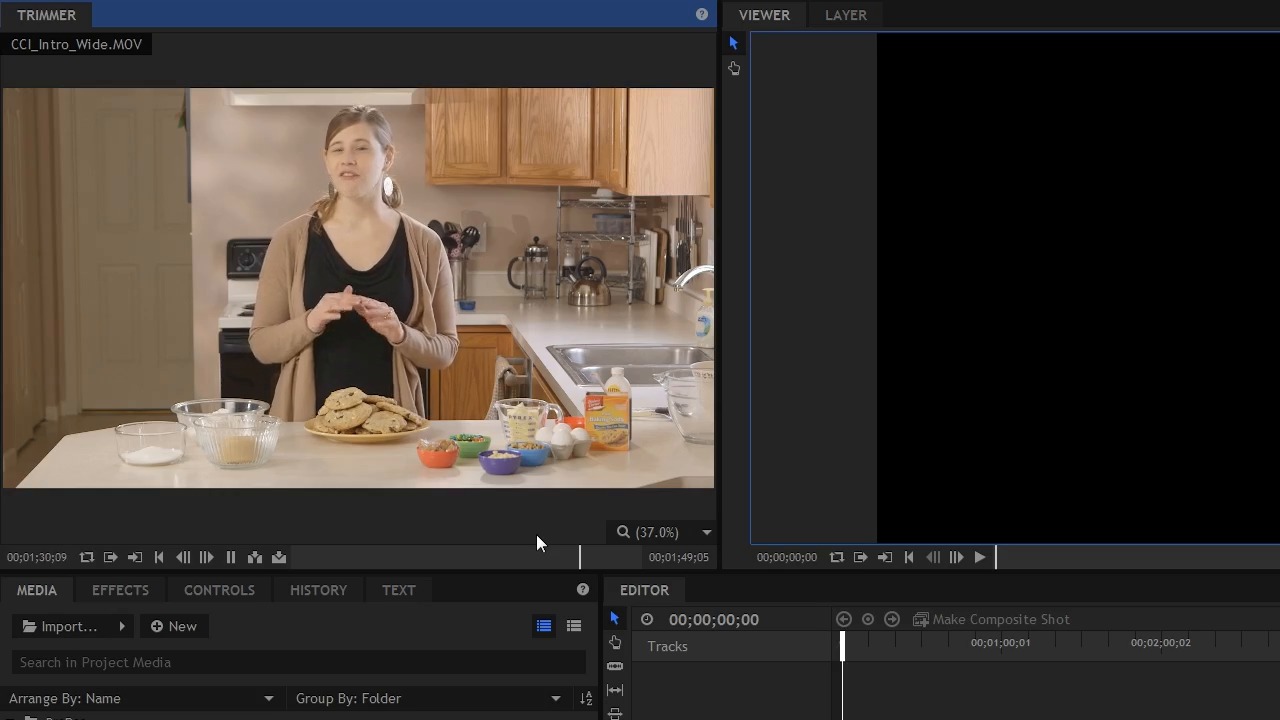
- Overview
- Transcript
4.1 The First Cuts Are the Deepest
In this lesson you will learn how to review your clips and mark the in and out points of individual segments before you put them on the timeline.
1.Introduction
1.1Introduction01:10
1.2What You Need05:03
2.Getting Started
2.1File Structure09:39
2.2A Quick Tour of HitFilm09:30
2.3Import and Organize09:53
3.Set Up Your Project
3.1Proxies and Transcoding09:24
3.2What Is Video Editing?09:50
4.Editing Basics
4.1The First Cuts Are the Deepest10:02
4.2Add Clips to the Timeline07:37
4.3Refine the Edit, Part 110:20
4.4Refine the Edit, Part 208:51
4.5Add a Cutaway Shot08:19
4.6Build on the Basic Edit12:37
5.After the Edit
5.1Color Correct and Grade09:39
5.2Sweeten the Audio08:03
5.3Video Effects and Transitions08:53
5.4Export04:35
5.5Compression09:06
6.Conclusion
6.1Conclusion01:08
4.1 The First Cuts Are the Deepest
In this lesson you will learn how to review your clips and mark the in and the out point of individual segments before you put them into the timeline. Now you can just pull any old clip right into the timeline just by dragging it right out here and that's totally a fine thing to do. But that's not the most efficient way to do it because often you'll be working with clips that have more in them than perhaps, what you want in your sequence, in your timeline here. At the very least there's gonna be some junk at the beginning and possibly the end of the clip that you probably want to clip out. Maybe some camera motion. Maybe some onset dialogue, maybe some weird noises, whatever it is there's almost always going to be a little bit that you need to trim out before you add it to the timeline. Now, if you just add things to the timeline and then try to deal with it later, what ends up happening is you try and adjust these clips and as you add more and more clips, you have a lot of dead space that you have to keep constantly removing. Which isn't a big deal, but this is not the best work flow. So I'm gonna select this clip here by drawing a little selection over it and then delete it. And then I'm going to click on this CCI_intro_wide and when I click on it, it loads it up here in the trimmer. So I just single click on it and it's up here in the trimmer. And now if I click up in the trimmer panel, what I can do is play this clip and figure out where I want the in- and the outpoint to be. That way when I'm adding it to the timeline, I'm only adding the bits that I know I want in here and I'm not adding the things that I know that I definitely don't need. So what I'm gonna do is play this from the beginning and then when I find the point where I want to mark the in, I'm going to press I on my keyboard. Now there are buttons here that will also do that for you, so you can also hit these buttons right here. There's a Set In Point and a Set Out Point. But you can also use the keyboard shortcuts I, and o, you can see that when I hover over there, it's telling me in the parenthesis there that's what the keyboard shortcut is. So, I'm gonna press space bar here to play this. >> [INAUDIBLE] What that was sorry. >> [INAUDIBLE]. >> Okay, thank you. Okay, have you ever had a recipe for chocolate chip cookies that left something to be desired. It can be daunting trying to find just the right recipe. Not flat, not too dry, delicious flavor, picture perfect, and best of all easy. Hi, I'm SherylZiegler and I'm going to show you in this video how to make big bakery style cookies. I didn't say chocolate chip. >> That's okay. >> Sorry >> Now you can see that this clip is pretty long, it's 1 minute and 49 seconds. And there are multiple takes of Sheryl here doing this intro to this cookie instructional video, but that was the first take. And there were some good bits but I'm gonna see if there's anything in the second take that maybe a little bit better. Now in addition to playing and pausing with the spacebar, you can also use. The j, k, and l, keys so, L is to play forward, K is to stop and J is to play backwards, now the cool thing about this, is you can double tap L and it will play at 2x speed >> Yeah >> [INAUDIBLE] >> And this is a very useful feature for scrubbing footage here because you can kind of fast forward through the dead space very quickly until you get to the stuff that you want. And then if you keep your index, middle, and ring finger here on l, k, and j respectively, it's a very good place to put your hand, because you can reach a lot of the other tools from this kind of hand position here. So that's what I'm doing, I'm just gonna fast forward by double tapping l, one click of the l key plays at normal speed, two presses of the l key plays at double speed. I think may three presses will play at 300% speed. >> [INAUDIBLE]. >> But 300% speed is a little too fast to try and discern so I'm going to back it up here by hitting the j key. >> [INAUDIBLE] >> All right, so right here, I could see she takes a breath, and she's gonna start the second take, so I'm gonna listen to it at normal speed. >> Have you ever had a recipe for chocolate chip cookies that left something to be desired? It can be daunting trying to find just the right recipe, not flat, not too dry, delicious flavor, picture perfect, and best of all, easy. Hi, I'm Cheryl Zigler, and in this video, I'm going to show you how to make bakery style, delicious chocolate chip cookies. >> So I thought the beginning of that was pretty good. The ending wasn't as strong. I'm going to take a look at the last part of this clip here and see if it's any better. >> Have you ever had a recipe for chocolate chip cookies that left something to be desired? It can be daunting trying to find just the right recipe not flat, not too dry picture perfect and best of all, easy. Hi, my name is Cheryl Ziegler and in this video I'm going to show you how to make big, bakery style chocolate chip cookies. >> Cool, so, I didn't like the beginning of that, but I like the end. She had a nice pick up here of the cookies, and I think it was the best take here of the script. And so what I want to do is grab the beginning from the second take and the end of this third take. So here's what I'm going to do. I'm just gonna rewind here until right before she picks up the cookies. >> In this video, I'm going to show you how to make [INAUDIBLE]. Hi my name- >> So I'm probably gonna pick it up. >> Hi my name is Cheryl and in this video. >> Somewhere in this neighborhood. I'm not exactly sure until I get the other clip in here where the edit point will be. But it will be somewhere in here, for now I'm gonna take it from where she says hi. >> [INAUDIBLE] hi. >> So right here I'm gonna press i. It doesn;t have to be exact because we're gonna fine tune this once we get it on the timeline. Now I'm gonna press the l key twice and just fast forward to the end of this take. Now that I've seen it I know when she stops talking, that's when I need to mark the out point. >> [INAUDIBLE] >> Now once you do this for awhile, you actually get pretty good at hearing things in 2x speed. I've been editing for a long time and I'm very good at editing in 2x speed but it is something that you have to get used to. So right here, I'm going to press the o key and you can see right down here It's marked the in and the out point. There's this kind of a darker area here, and then this lighter gray area, which is representing the portion that I have selected. You can see when I hover over it, it says the in point and the output and the duration is 7 seconds and 17 frames. So, couple of different ways that I can add this to the timeline. If I come down to the timeline here, I'm gonna just zoom in a little bit. I know that this doesn't need to be at the beginning because there's a portion of this clip that needs to come before this point in time. So what I'm probably gonna do is move the current time indicator or the CTI which is what I'll call it from now on, down a little bit and then I'm gonna take this clip. And just drag it right down into the timeline. Now there are other ways that you can get this clip in, you can insert, which is also b on the keyboard. And you can do an overlay. Which is n on the keyboard and I'll show you what those do in just a second. I'm gonna go back to the trimmer here and I want that intro from the second take, it's the intro to the second take that I liked and I think that somewhere around here. I'll just grab here by clicking and dragging Okay, so right about here I'm gonna mark a new end point, and I'm just going to fast-forward to where the out point needs to be. [INAUDIBLE] hi. >> Okay, so right about here I'm going to make the out point so press O and now I'll show you what some of these other buttons are going to do. If I move the CTI, right here right at the beginning of this clip here and I try and insert this. It's going to move the rest of the items on the timeline down to the right, which is further down in time to make room for this clip. Now in contrast, on overlay, which is n on the keyboard, is going to just overlay this clip over whatever is here. And you may not want that because the clip may go over some other media that may be on your timeline. And it's not still there if I pull this up. It has removed that clip from the timeline because we've replaced it with this clip right here. So I'm gonna undo that last overlay here and I'm just gonna manually drag this here to the beginning. Of the timeline and then here is what I have. >> Have you ever had a recipe for chocolate chip cookies that left something to be desired? It can be daunting trying to find just the right recipe. Not flat, not to dry delicious favor, picture perfect, and best of all, easy. Hi, my name is Sheryl and in this video, I'm going to show you how to make big bakery style chocolate chip cookies. >> Now if you were listening to the audio, you would've heard that that take sounded pretty good. However, if you were watching the video, you would've seen. >> Easy, hi. >> You would've seen a little jump there. Now you're thinking to yourself that doesn't look good and I would agree with you. That does not look spectacular. But that's something that you're gonna learn how to deal with in an upcoming lesson where you learn how to add a cut away shot. For now, you're ready to move on to the next lesson where you're gonna learn how to add clips to the timeline and build out a rough story.





